Expression Editor
Overview
The Expression Editor is a custom Perspective component that provides an enhanced interface for creating and editing Ignition expressions. It lets users bind an expression field to a PLC tag and transform its value with calculations using the Ignition Expression Language, with syntax highlighting, tag insertion, a live evaluated result, and error checking. It is used throughout Tamaki MES wherever a value can be driven by a tag or expression - for example the state, mode, downtime-reason, count, and rate expressions on the OEE Configuration screen.
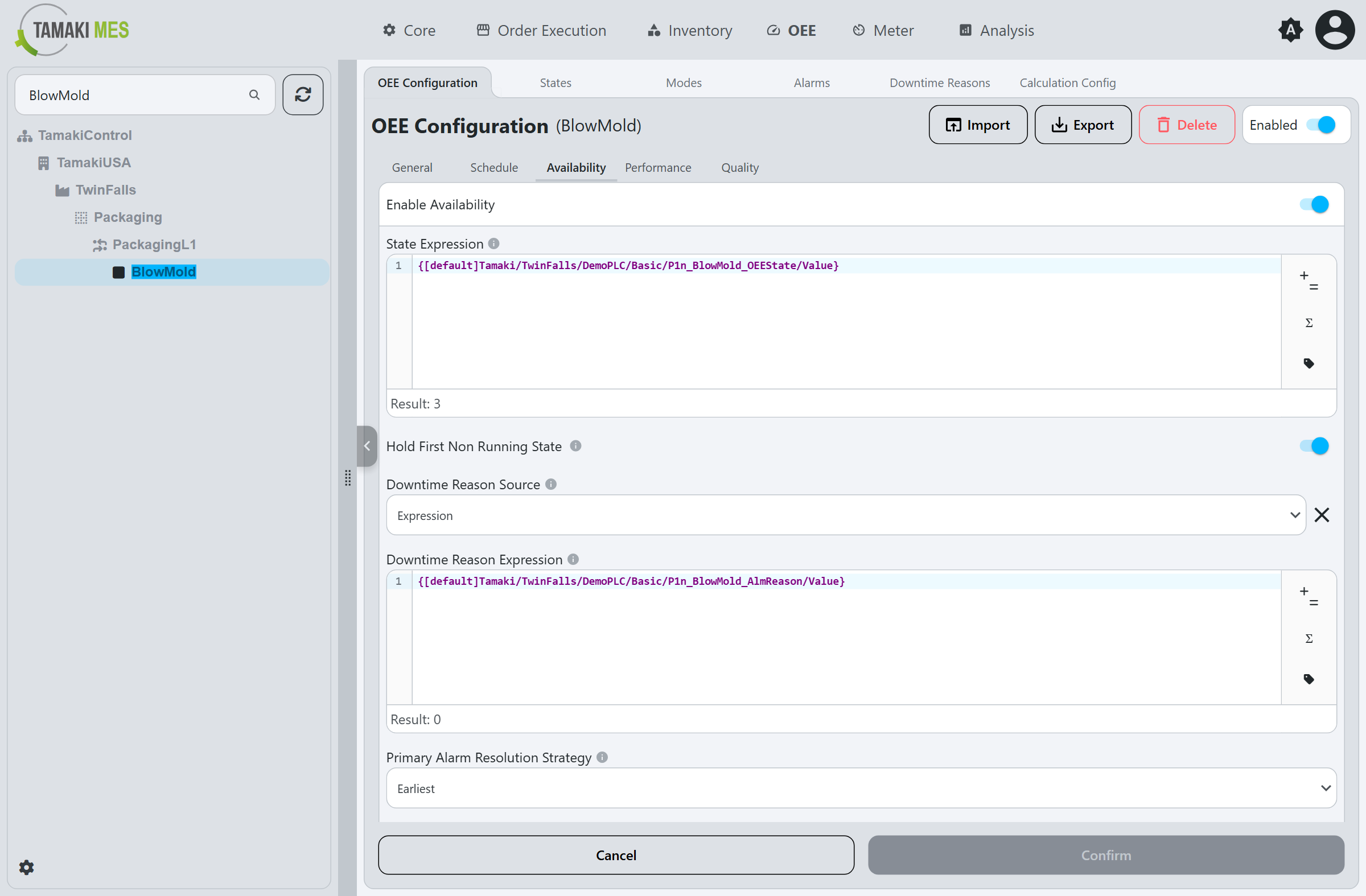
Interface
- Text entry area - where the expression is typed. It can be populated automatically by the Browse Tags button, and edited freely to build more complex logic and calculations.
- Result line - shows the live evaluated result of the expression, or an error if it is invalid.
- Toolbar (to the right of the editor):
-
Operators Button (
+=) - opens an Operators menu (Mathematical, Logical, and Bitwise) whose entries are inserted into the text entry area at the cursor: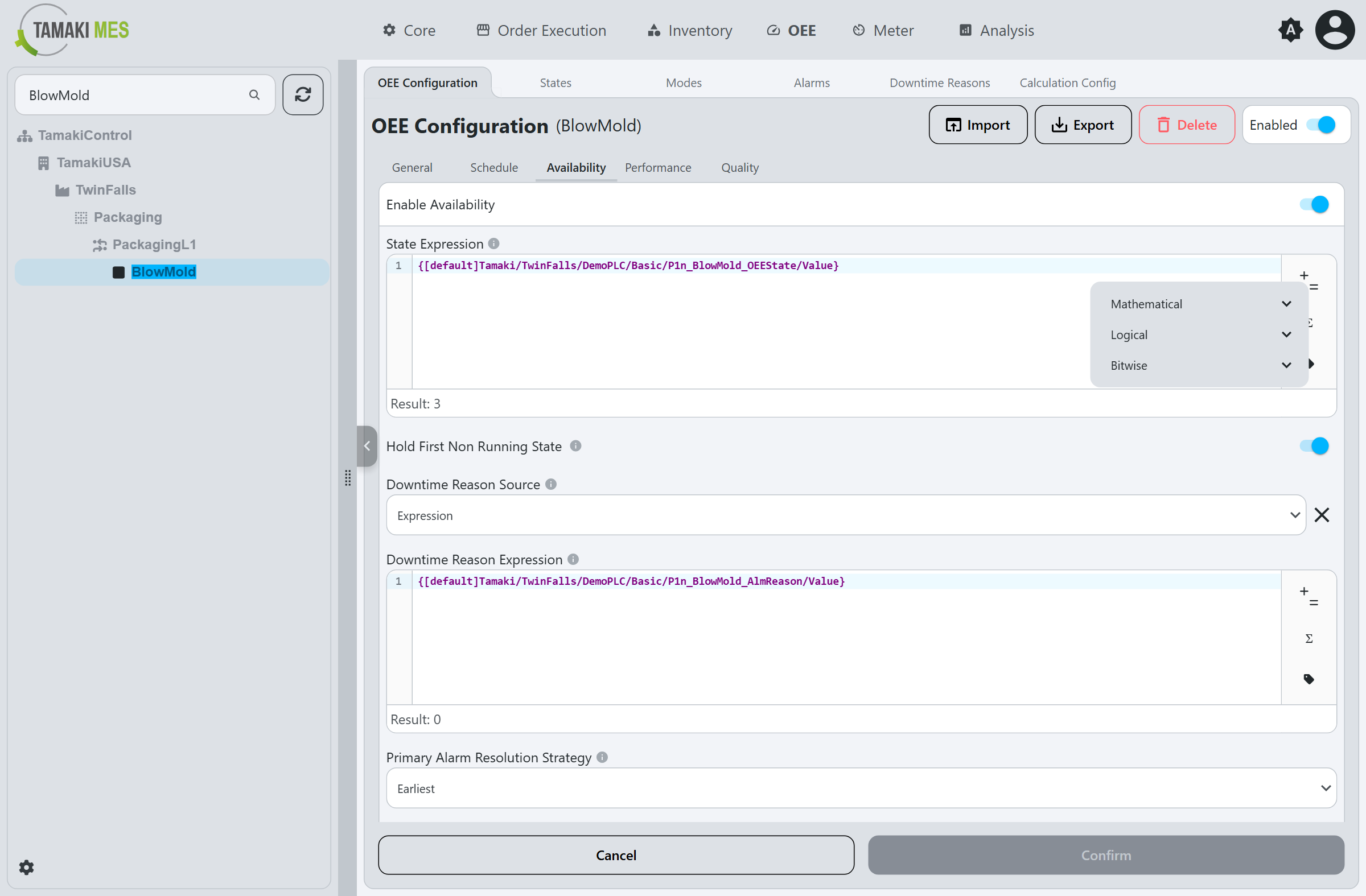
-
Formulas Button (
Σ) - opens a Formulas menu of built-in functions grouped by category (Advanced, Aggregates, Alarming, Colors, Date and Time, JSON, Logic, Math, Strings, Translation, Type Casting, Users):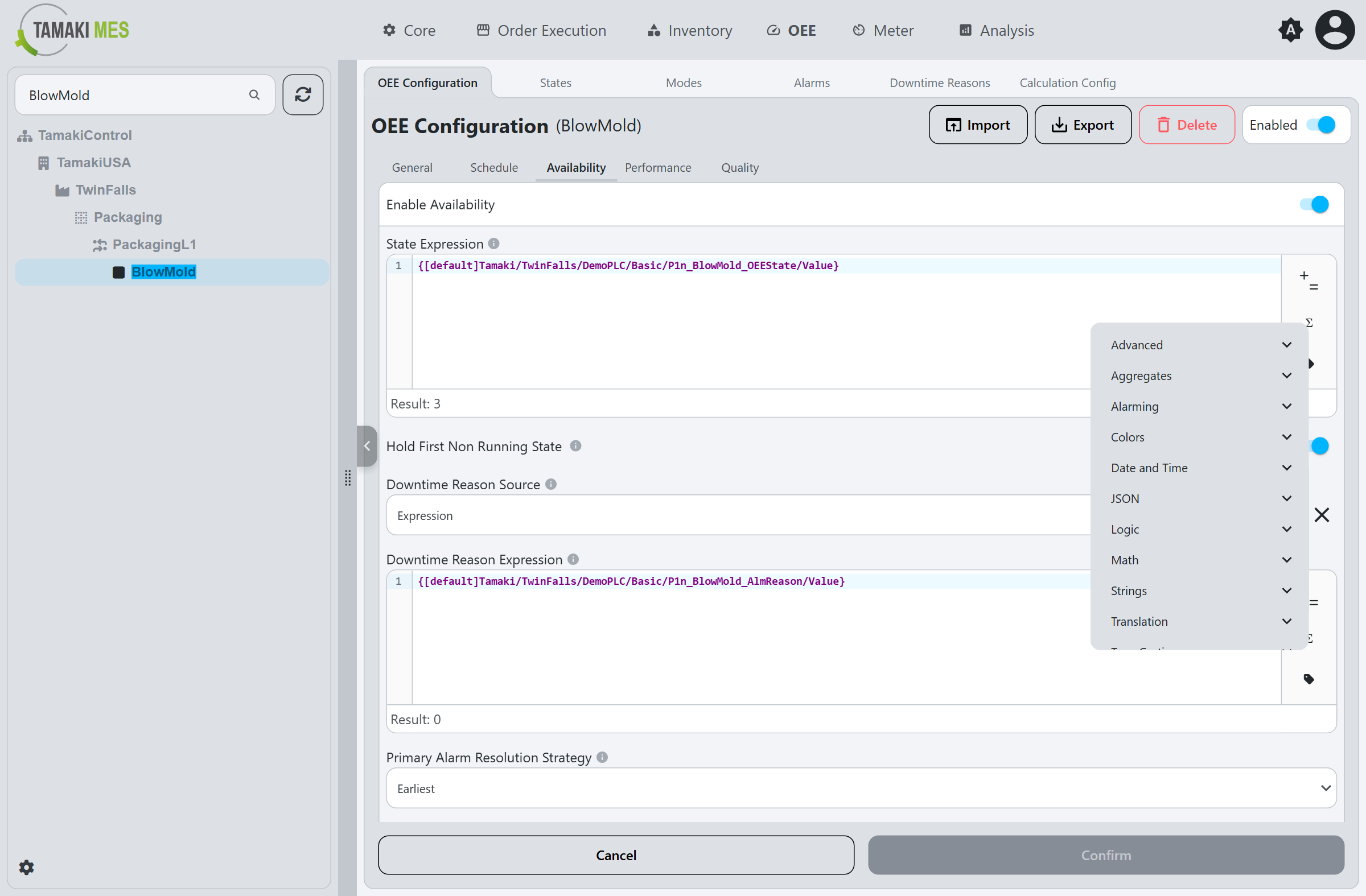
-
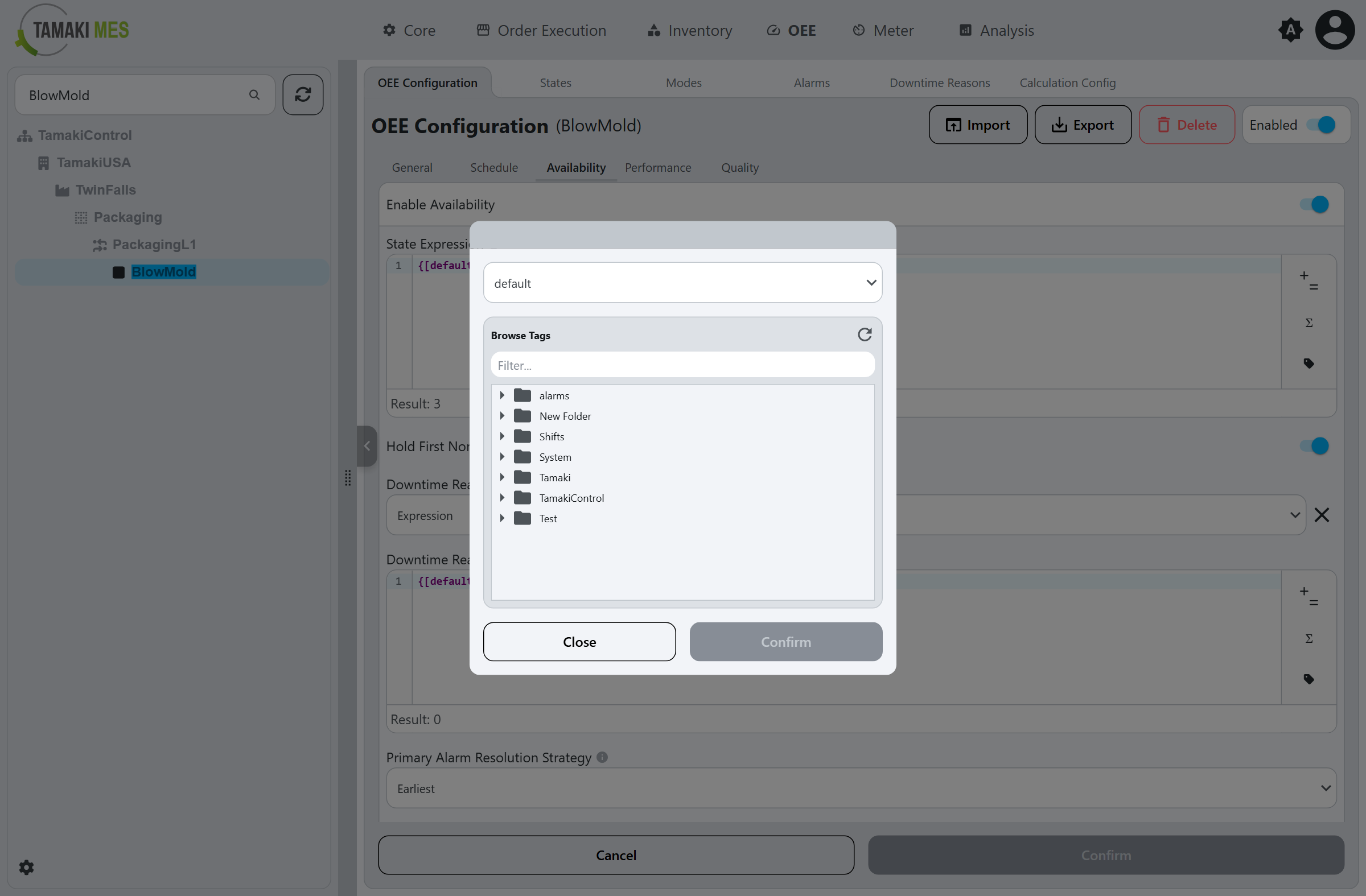
Browse Tags Button - opens the Browse Tags modal to select a PLC tag to insert:
- The top dropdown selects the tag provider; the tree below navigates the tags in that provider.
- To insert a tag, select it and click
Confirm, or double-click it.
-
Example: bind an expression field to a PLC tag
- Click the Browse Tags button on the right of the expression field.
- In the Browse Tags modal, navigate to the desired tag (for example a location's mode or state tag) and select it.
- Click
Confirmto insert the tag path into the editor. The Result line updates to show the tag's live value, confirming the binding.
Props
The Expression Editor component has the following props:
| Prop Name | Type | Description | Input/Output |
|---|---|---|---|
expression | string | The current Expression. | Both |
isValid | boolean | Indicates whether the current expression is valid. | Output |
showOperatorsButton | boolean | If true, shows a button to insert operators into the expression. | Input |
showFunctionsButton | boolean | If true, shows a button to insert functions into the expression. | Input |
showTagBrowserButton | boolean | If true, shows a button to insert tags into the expression. | Input |
cursorIndex | number | The current cursor index in the expression. | Output |
expressionResult | any | The result of the expression, if it is valid. | Output |
Events
The Expression Editor component emits the following events:
| Event Name | Description | Payload |
|---|---|---|
onOpenTagBrowser | Emitted when the user clicks the "Insert Tag" button. | None |
Notes
- The Expression Editor is designed to be used in conjunction with the
TamakiMES/_components/ExpressionInputPerspective View, which provides a complete interface for editing expressions, including a label, description, and error messages. - For expression syntax, refer to the Ignition Expression Language documentation.