Materials Import/Export
Navigation:
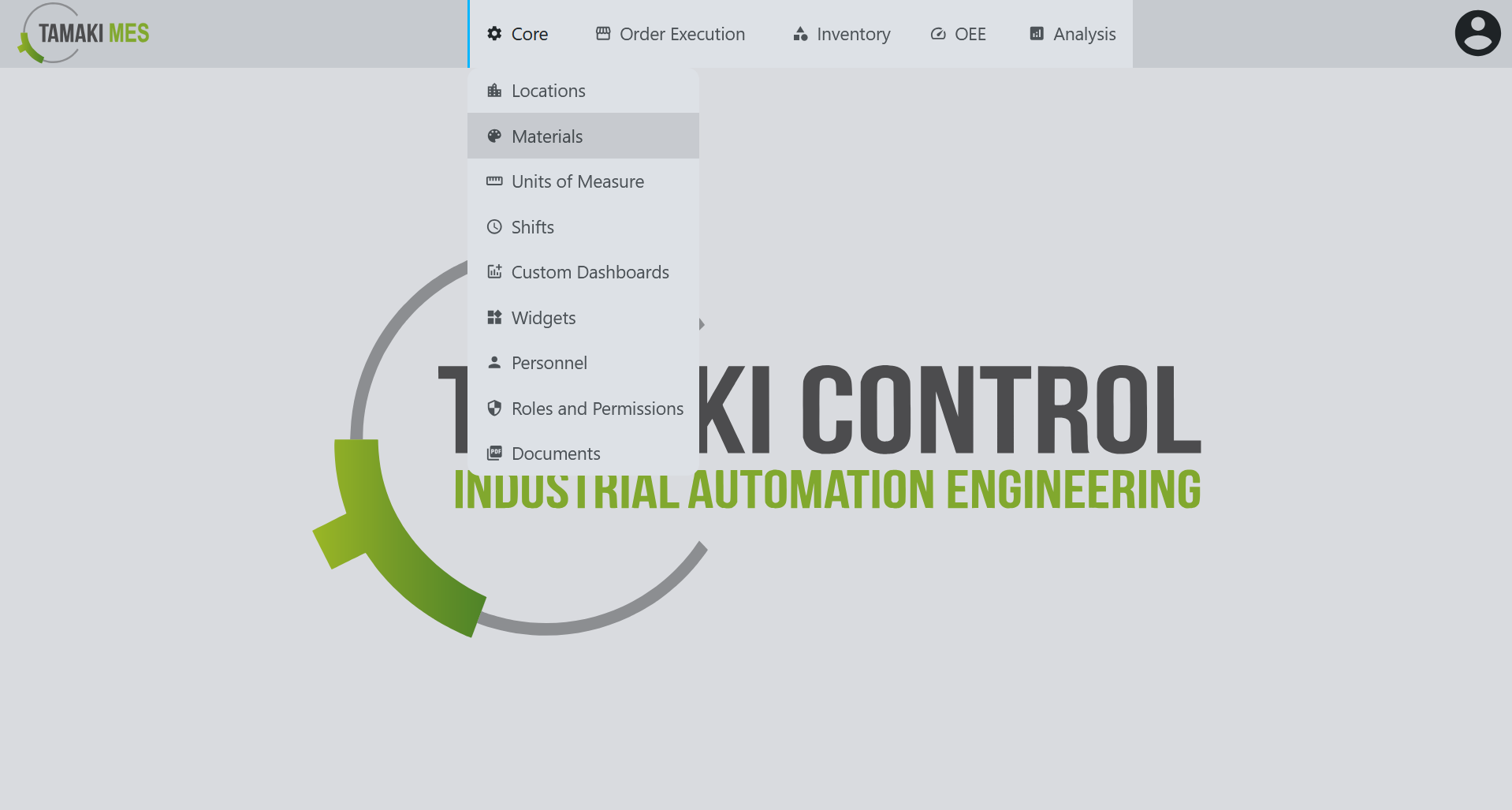
Importing Materials
How to use:
-
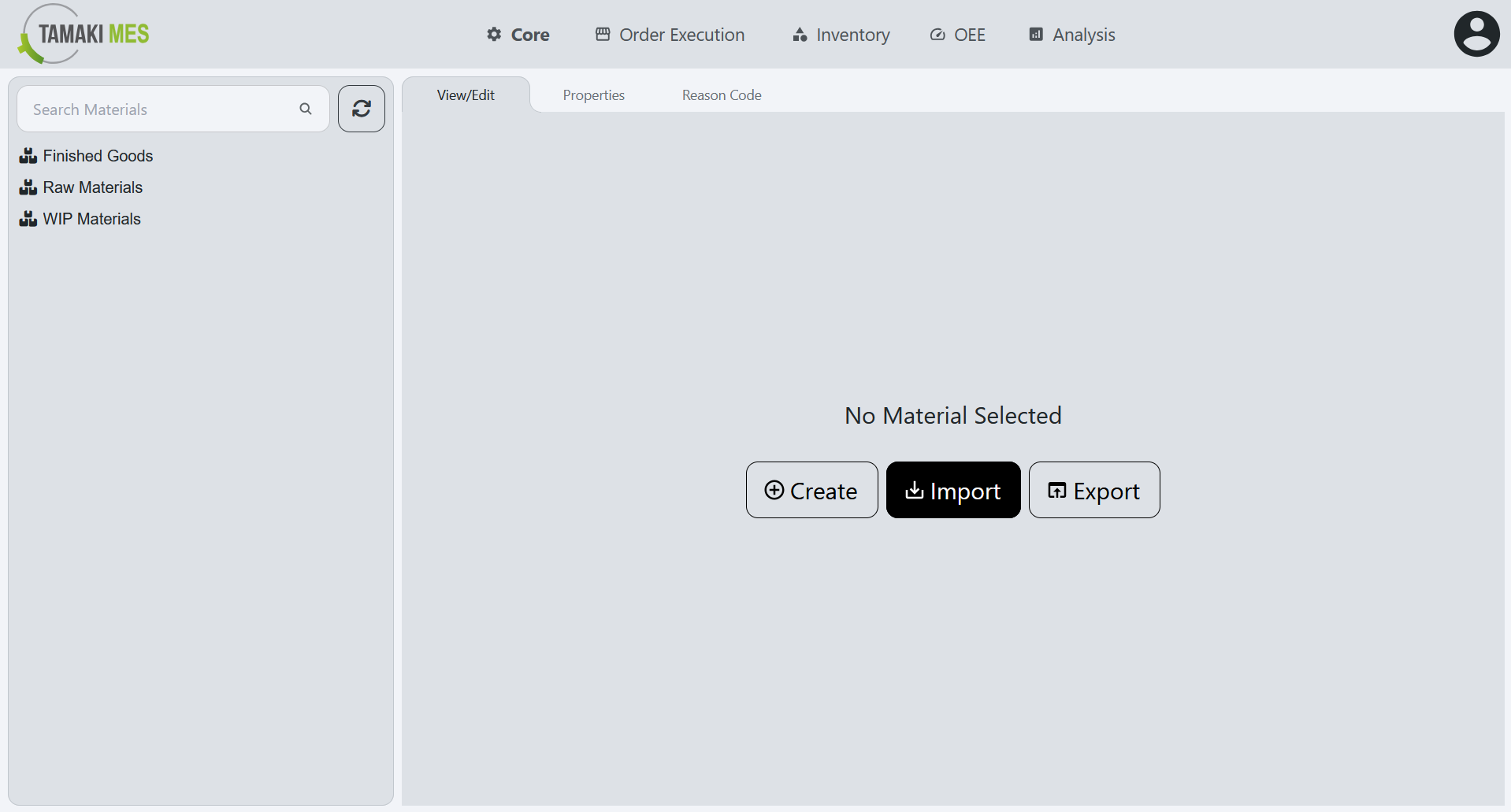
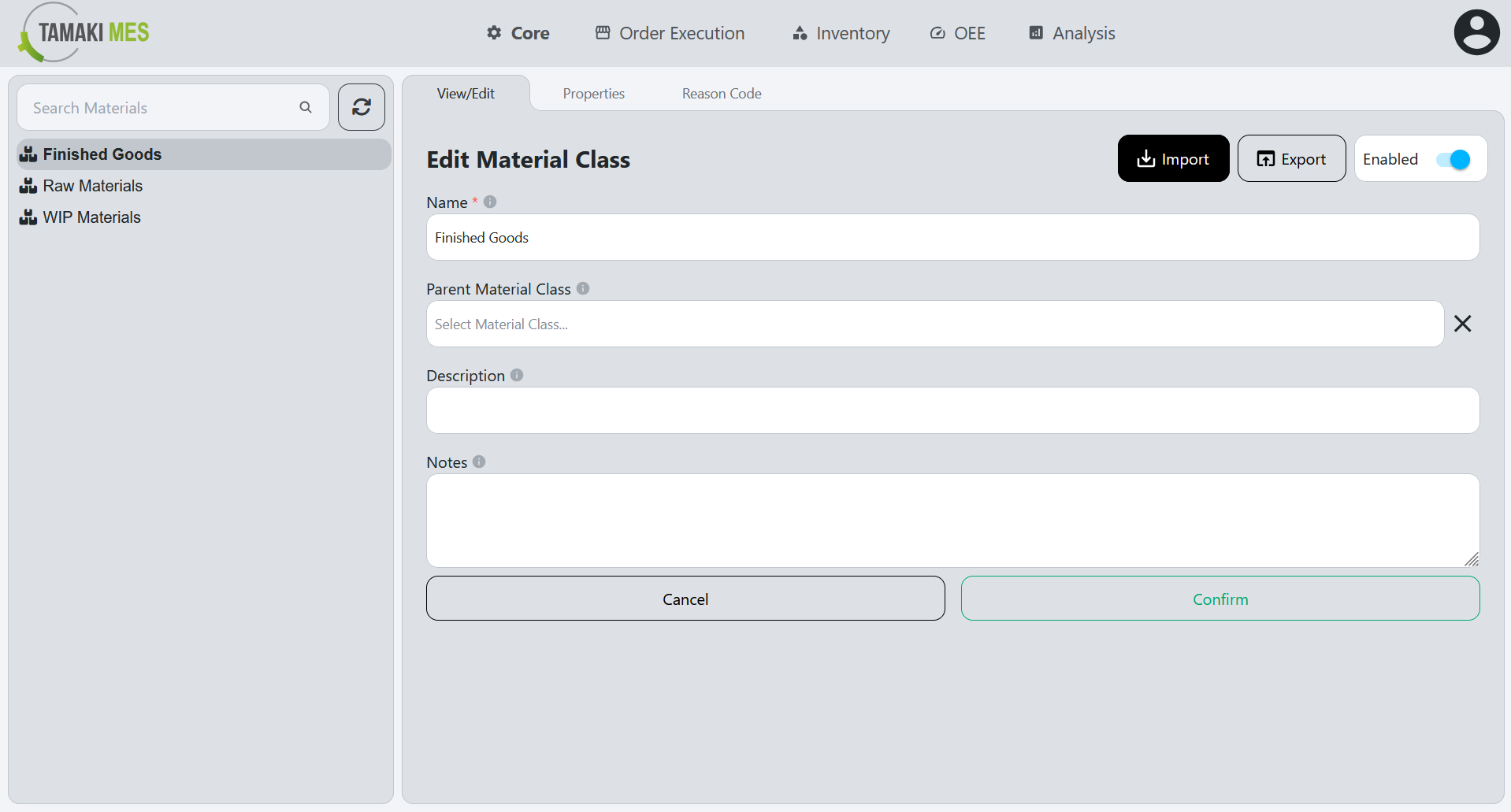
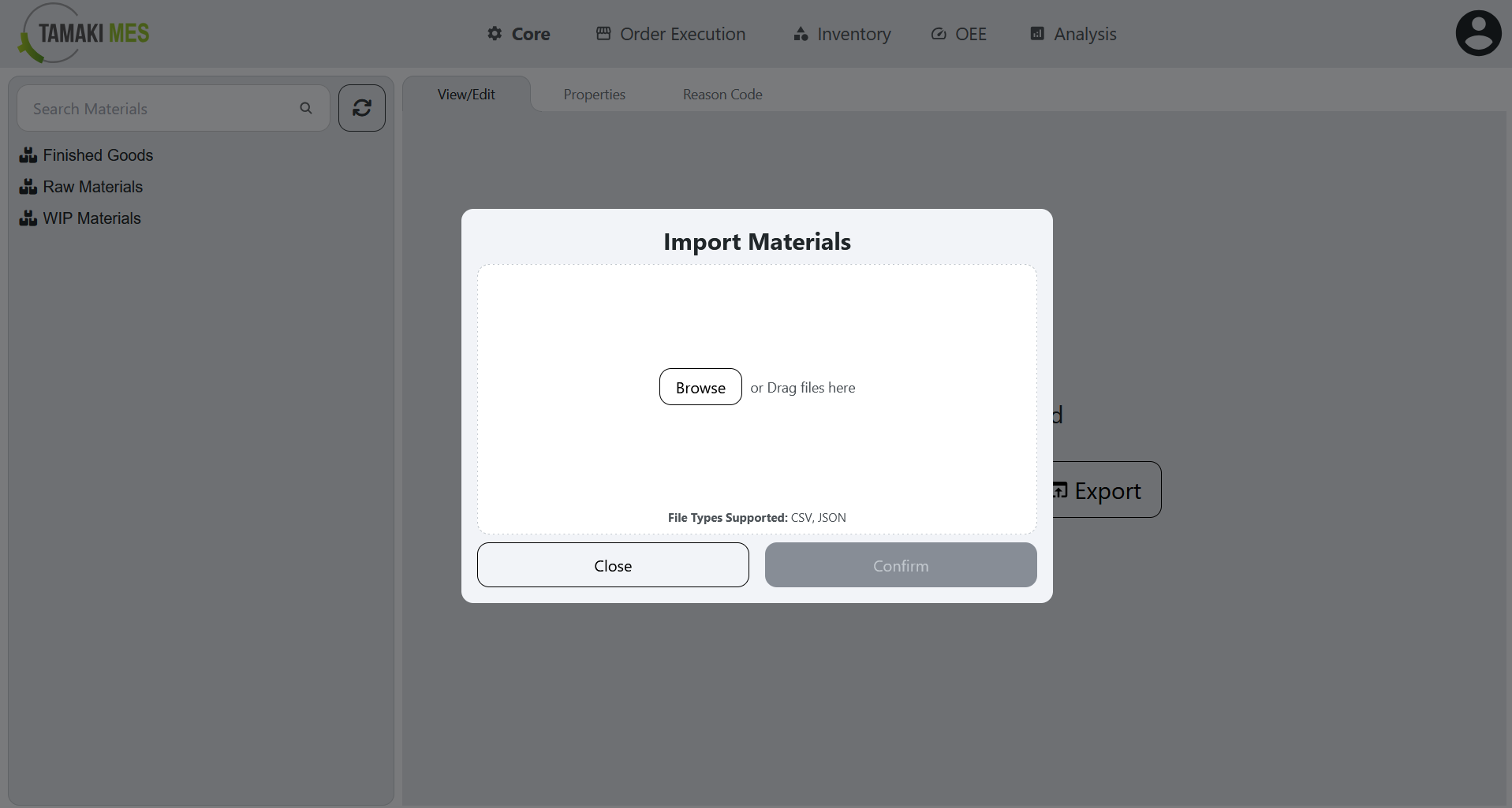
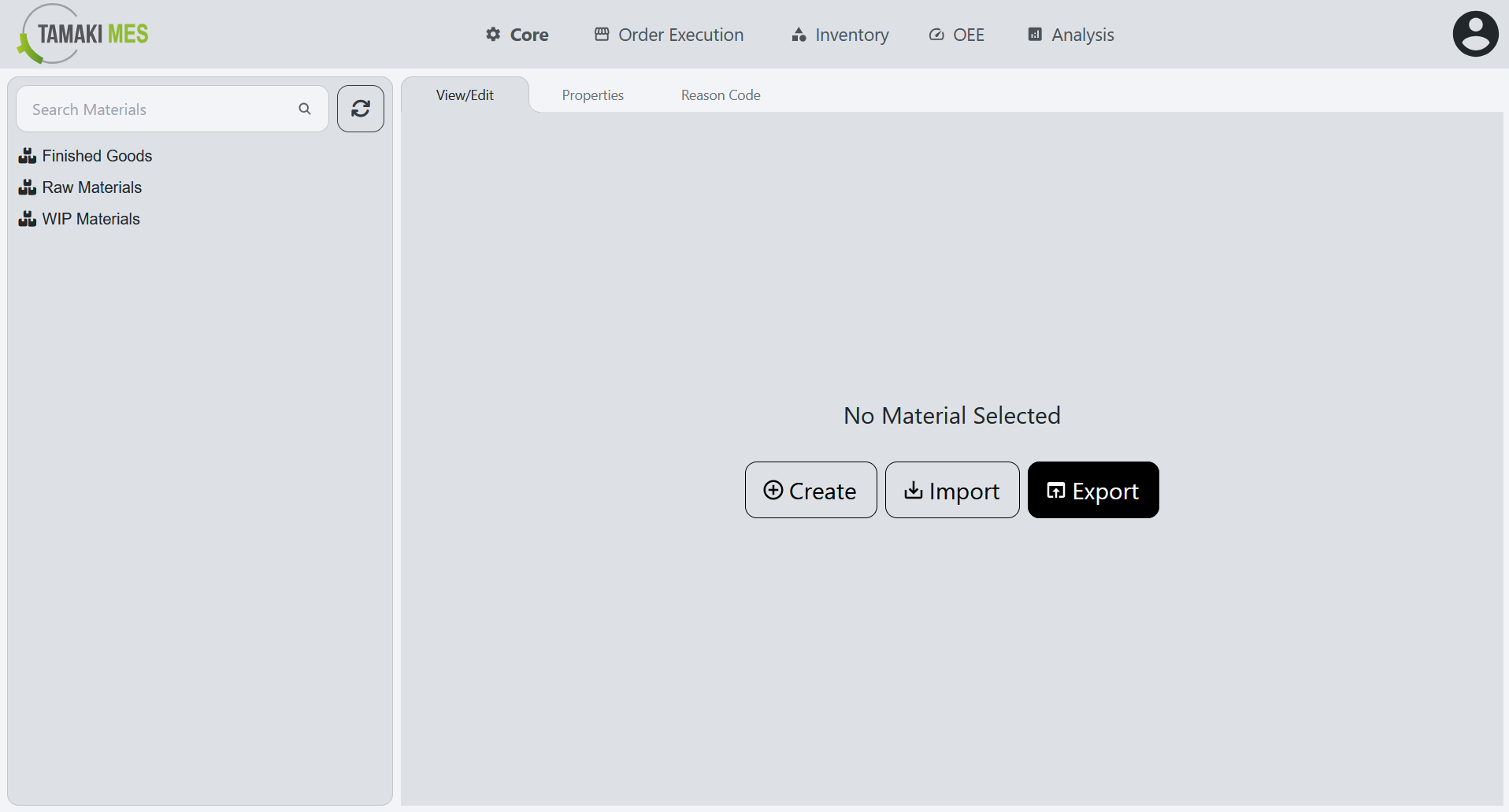
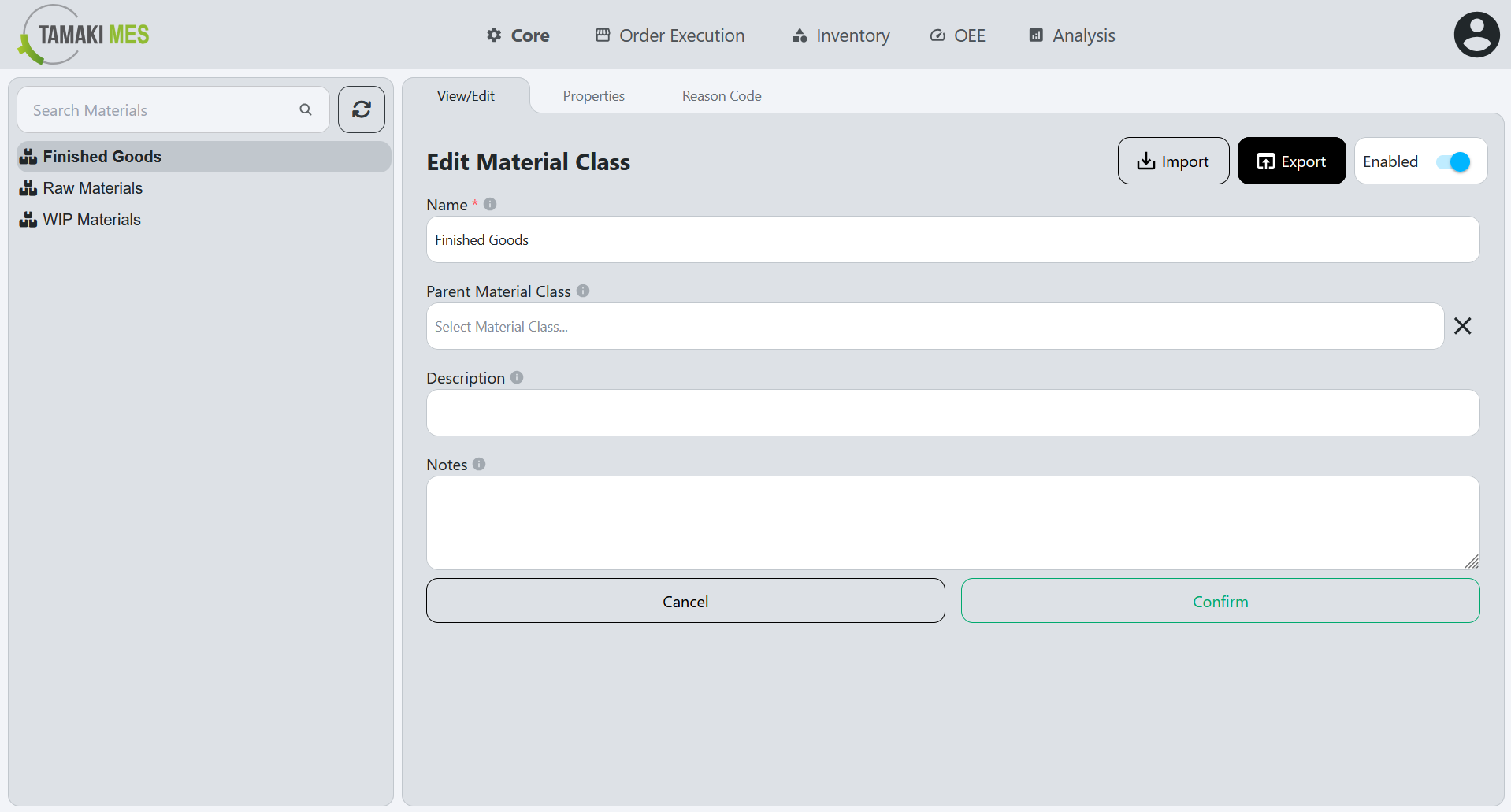
To import materials, press the import button and add a CSV or JSON file to the file upload field. Then press the confirm button.
-
It is recommended to export at least one pre-existing material to CSV to ensure the correct format of the CSV file.
Import Behavior:
-
For Materials: When importing, the system checks whether a material already exists by path. If no match is found, it then checks by ERP ID. If a match is found, the existing material is modified, otherwise a new material is created.
-
For Material Classes: When importing, the system checks whether a material class already exists by path. If a match is found, the existing material class is modified, otherwise a new material class is created.
Exporting Materials
How to use:
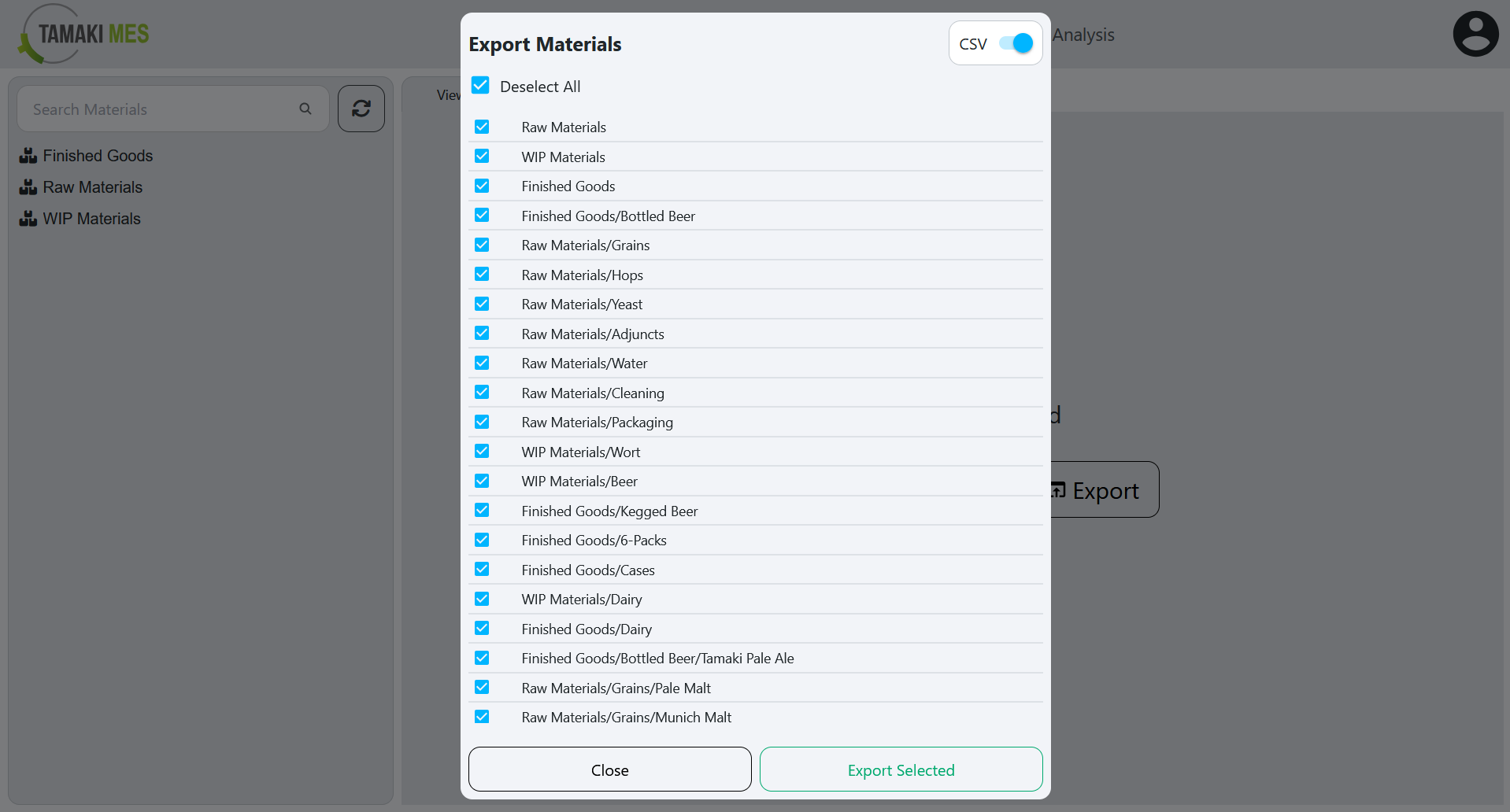
- To export materials, press the export button and select the materials and material classes you'd wish to export. Then press the export selected button.