OEE (Overall Equipment Effectiveness) Import/Export
It is recommended to import Modes and States before importing OEE configurations. Alternatively, you can import OEE configurations with enabled = false and enable them once the OEE Modes and OEE States have been successfully imported.
Importing enabled OEE configurations before the required OEE Modes and OEE States exist can lead to issues with the data collection service. This may result in inconsistent or unexpected behavior, and in some cases, a service restart may be required before data collection will function properly even after the OEE Modes and OEE States have been imported.
OEE States
Navigation:

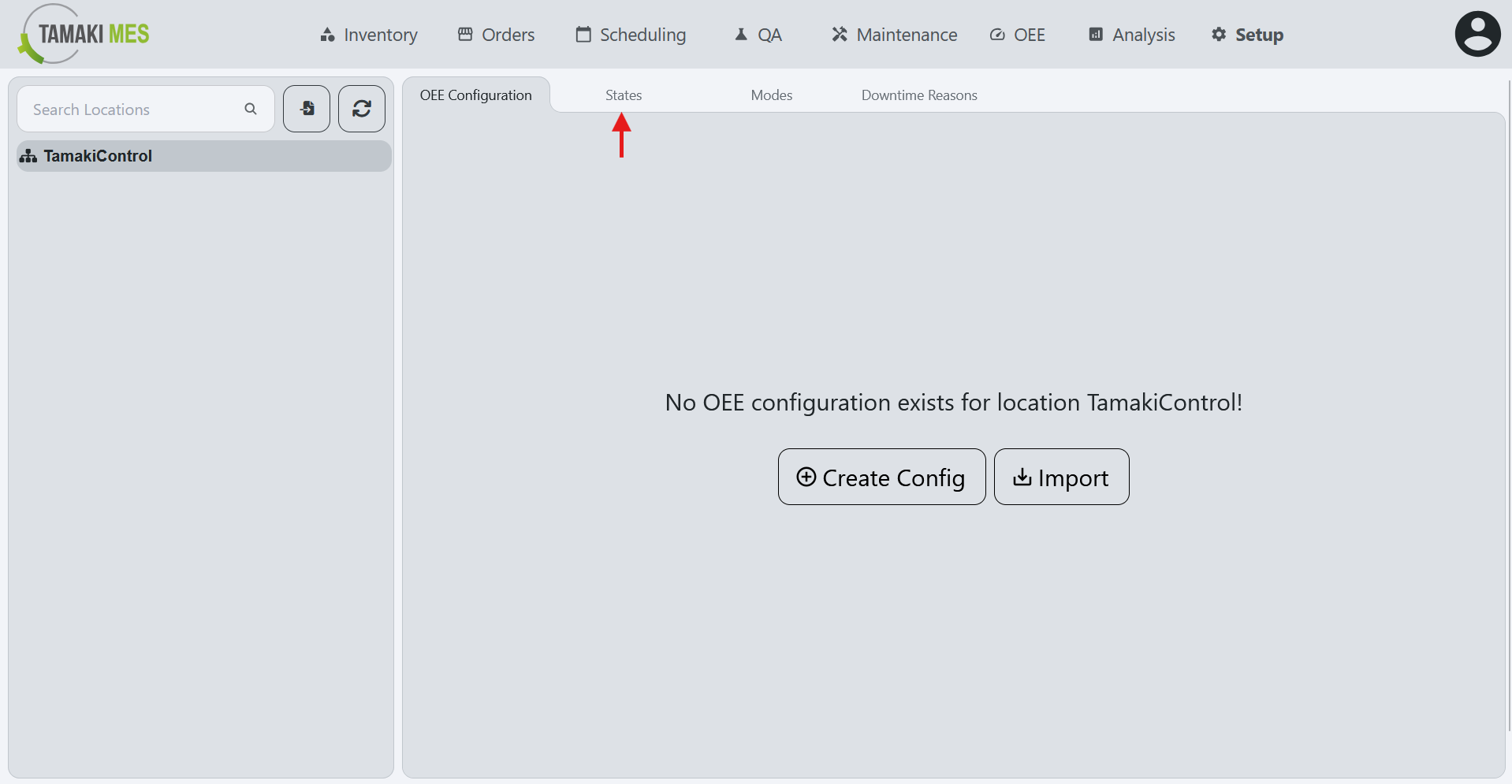
Importing OEE States
How to use:
-
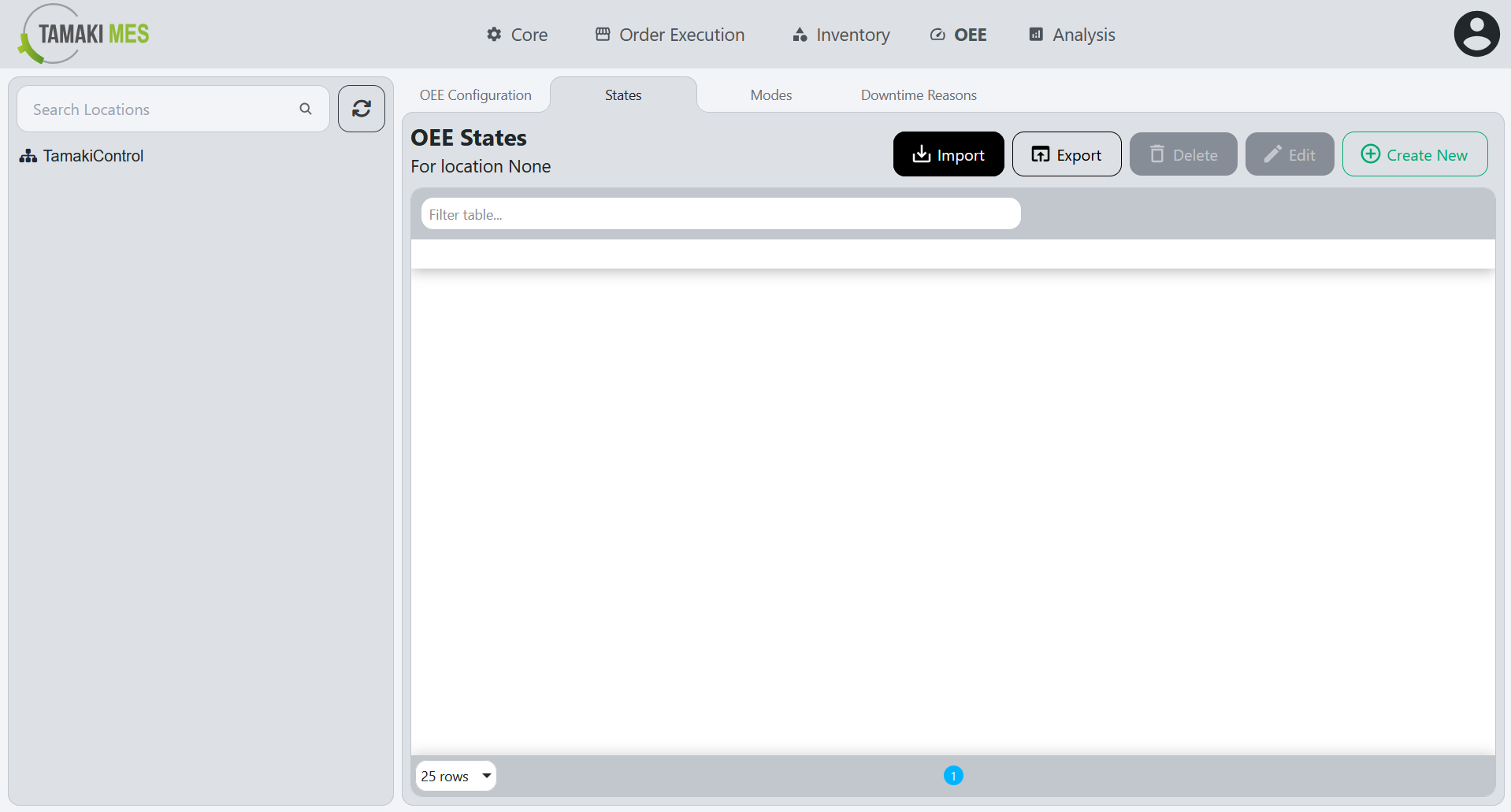
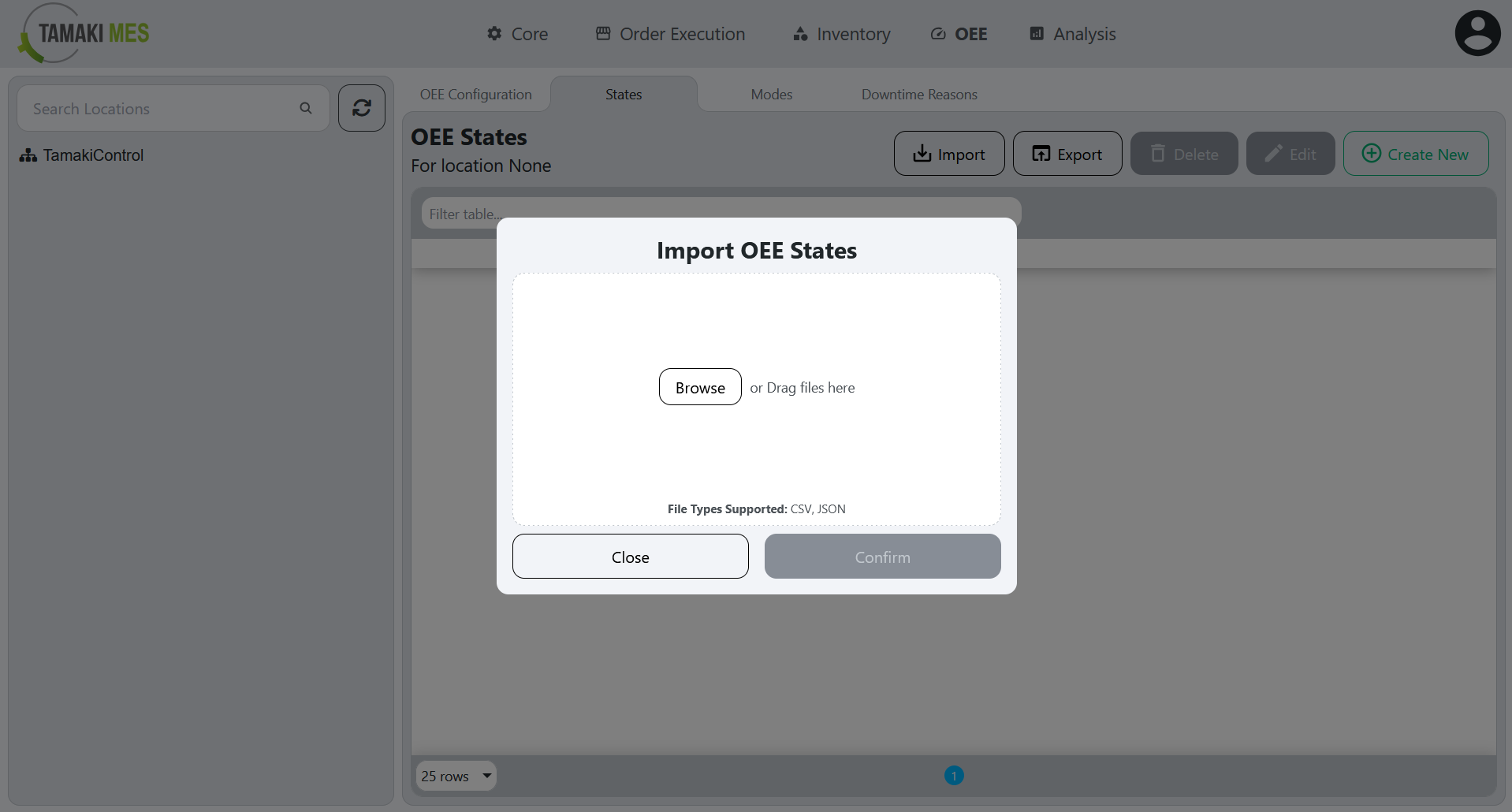
To import OEE states, press the import button and add a CSV or JSON file to the file upload field. Then press the confirm button.
-
It is recommended to export at least one pre-existing OEE state to CSV to ensure the correct format of the CSV file.
Import Behavior:
- When importing, the system checks whether an OEE state already exists by location and state code. If a match is found, the existing OEE state is modified, otherwise a new OEE state is created.
Exporting OEE States
How to use:
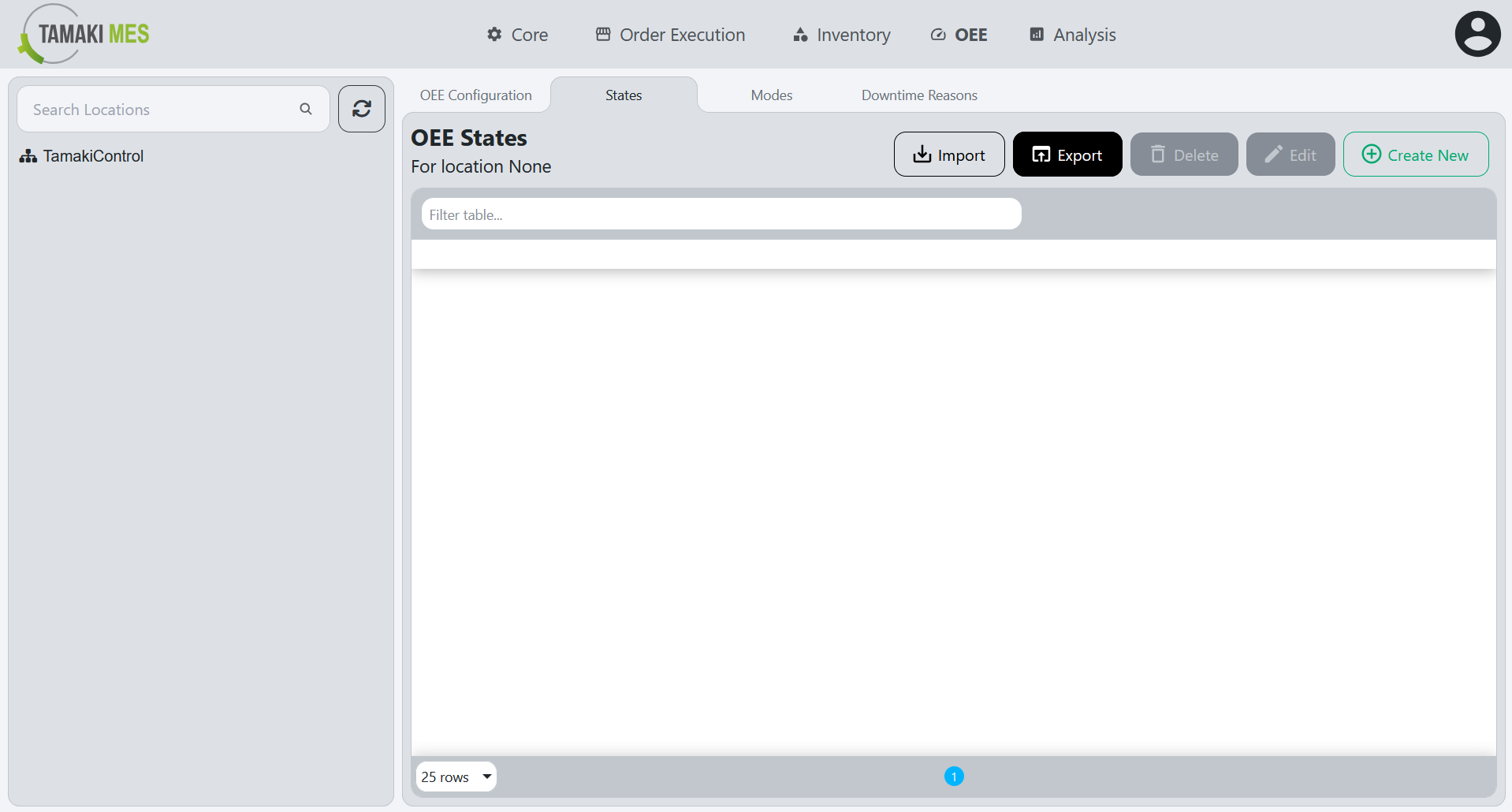
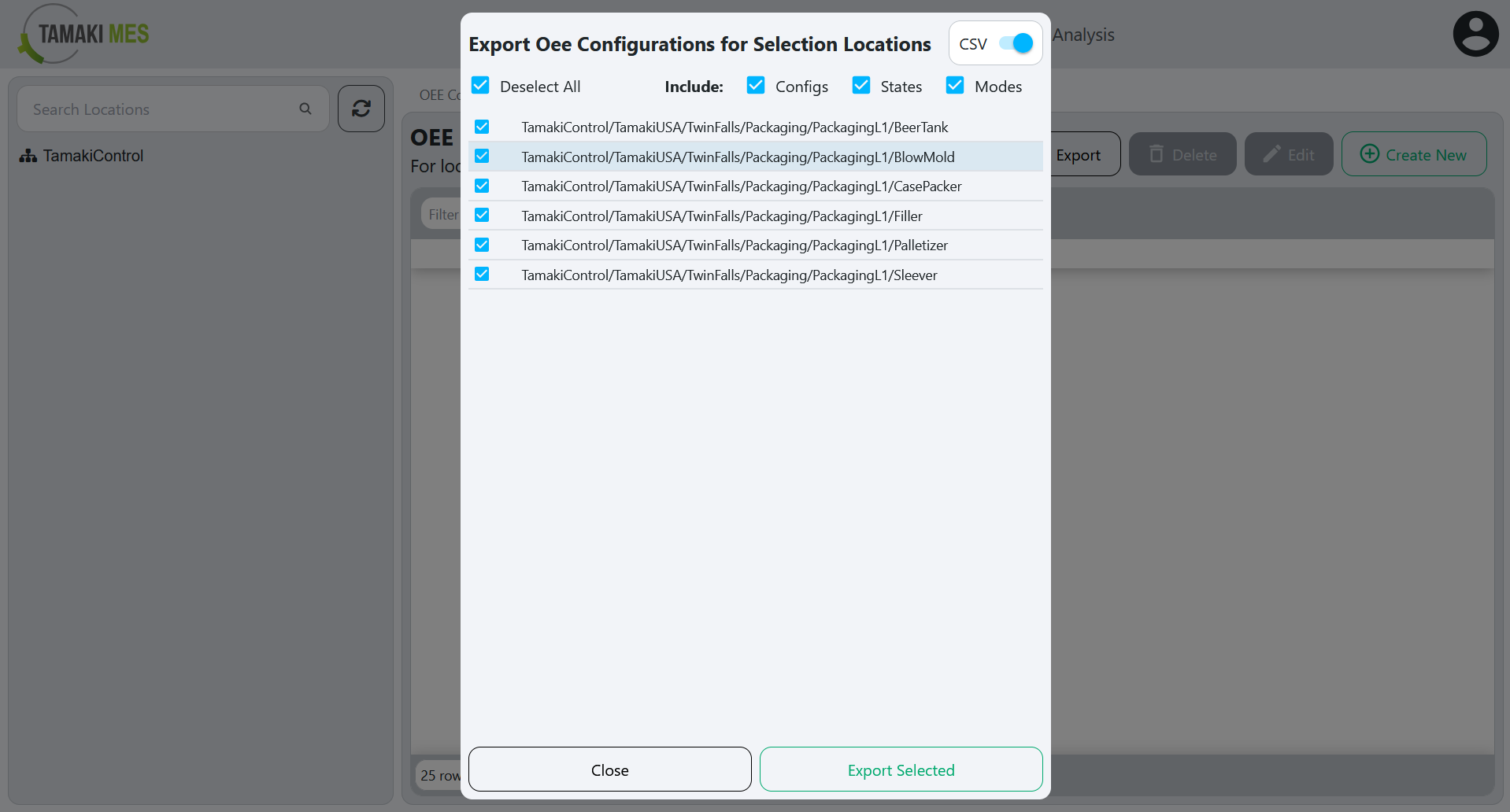
- To export OEE states, press the export button and select if you'd like to include the configuration, modes and states. Select the locations associated with the OEE states you'd wish to export. Then press the export selected button.
OEE Modes
Navigation:
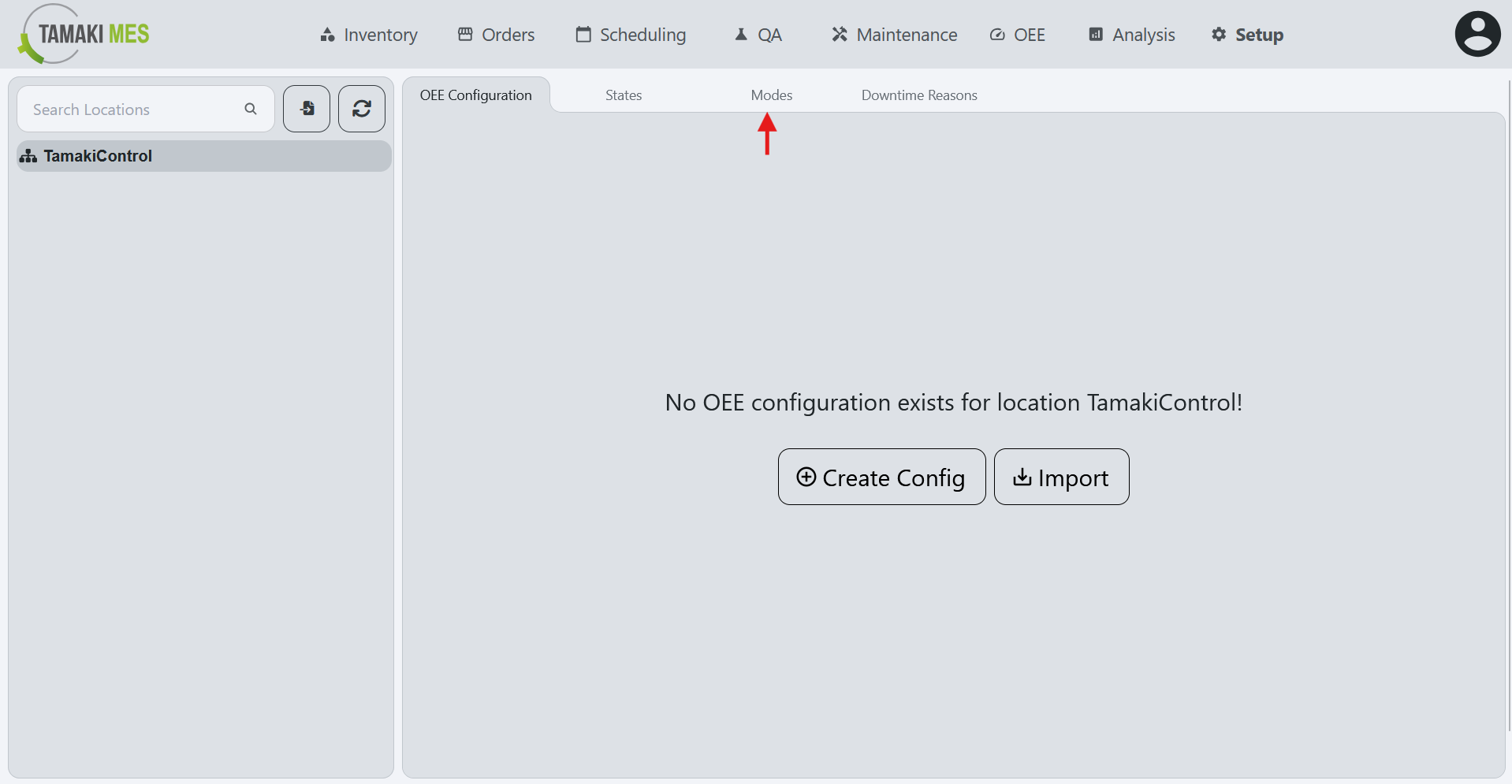
Importing OEE Modes
How to use:
-
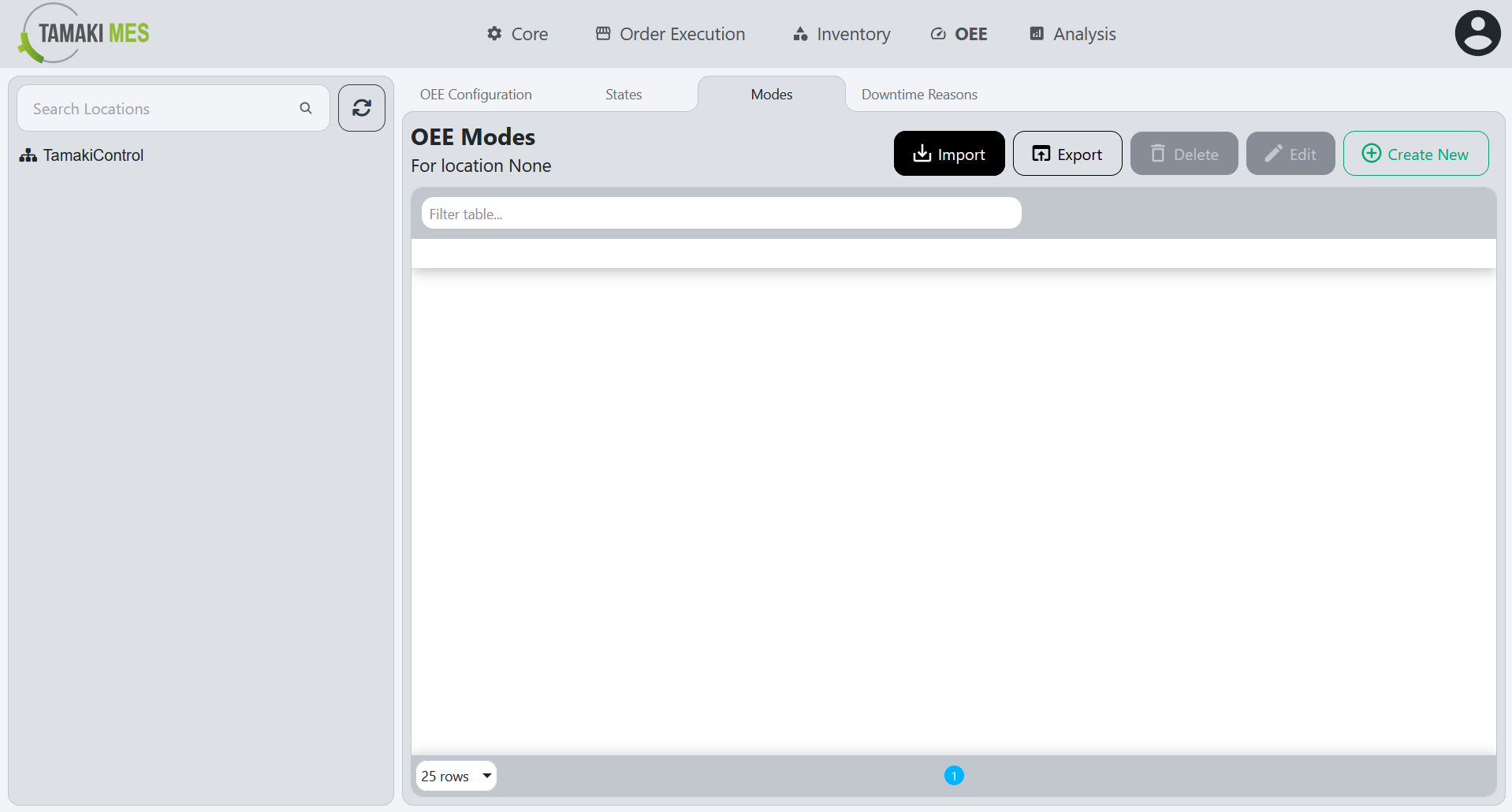
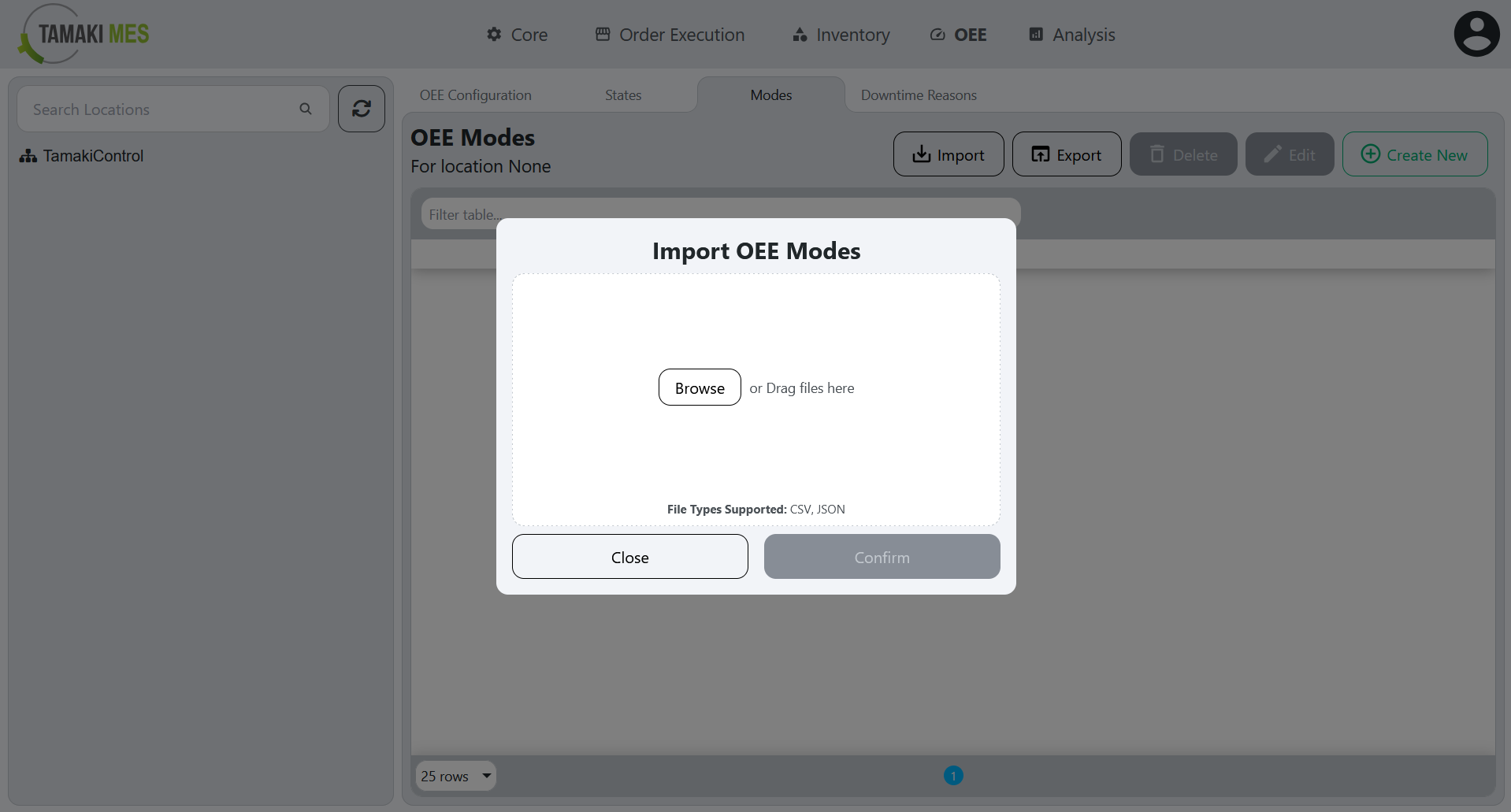
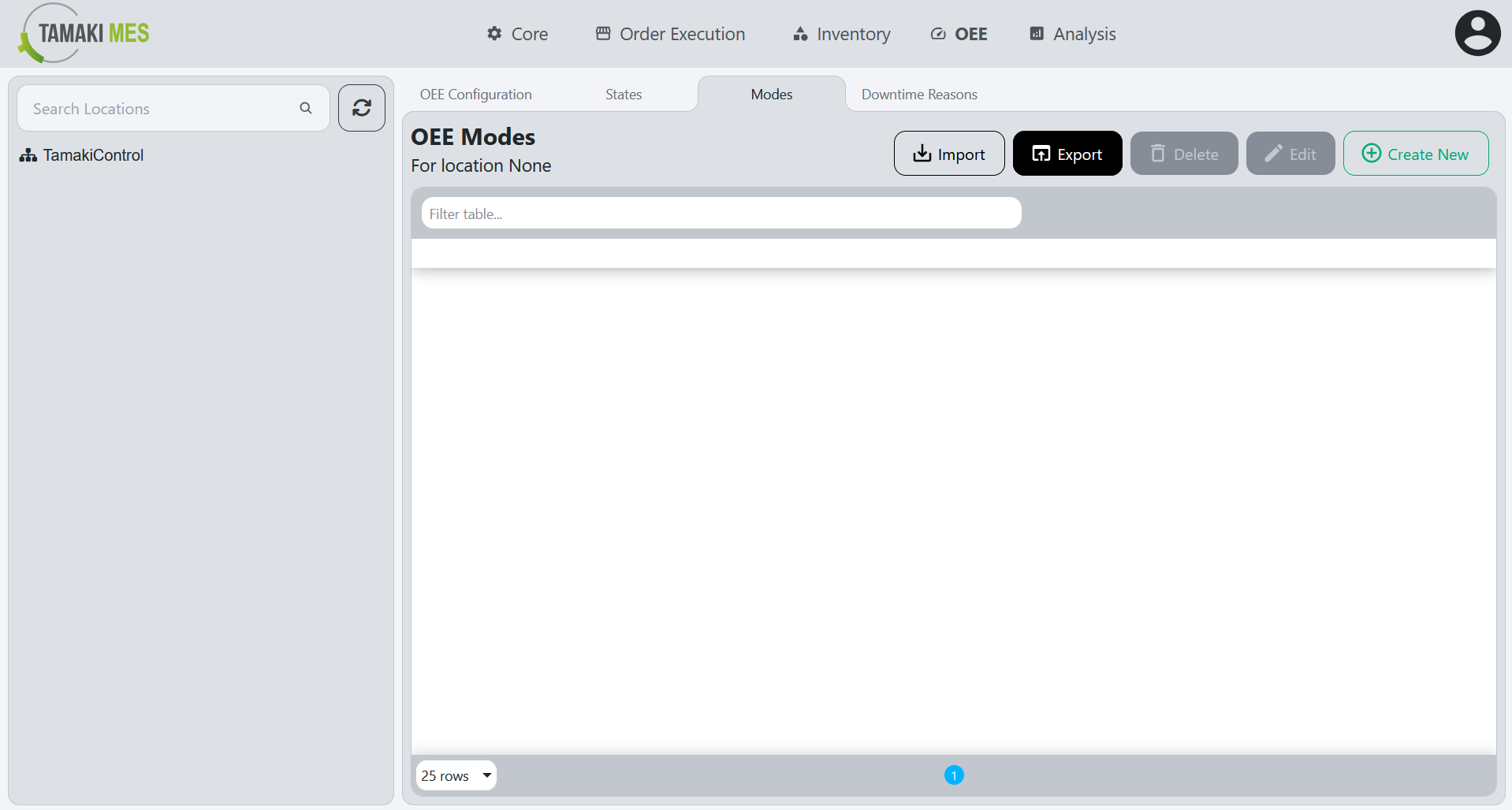
To import OEE modes, press the import button and add a CSV or JSON file to the file upload field. Then press the confirm button.
-
It is recommended to export at least one pre-existing OEE mode to CSV to ensure the correct format of the CSV file.
Import Behavior:
- When importing, the system checks whether an OEE mode already exists by location and mode code. If a match is found, the existing OEE mode is modified, otherwise a new OEE mode is created.
Exporting OEE Modes
How to use:
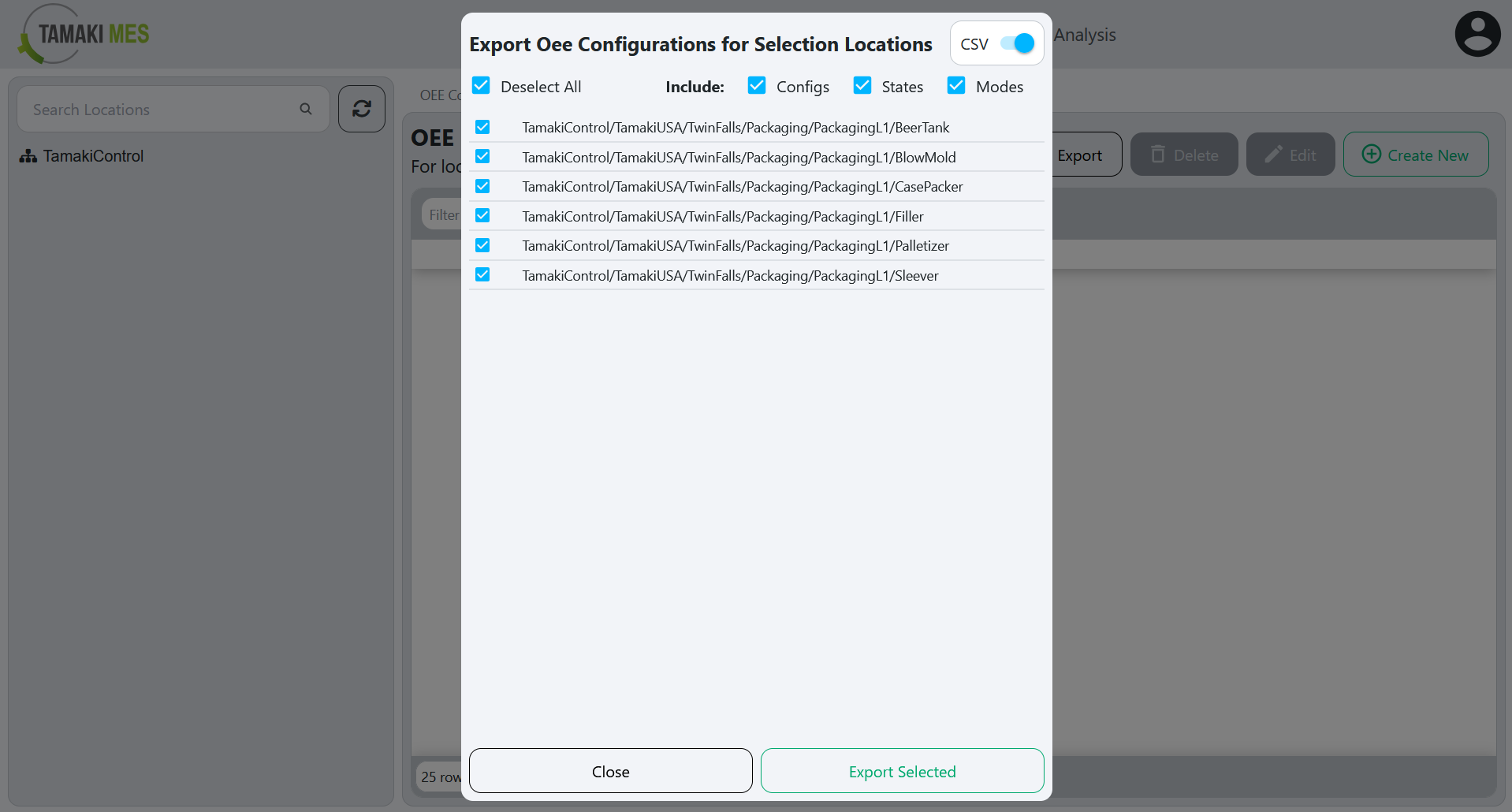
- To export OEE modes, press the export button and select if you'd like to include the configuration, modes and states. Select the locations associated with the OEE modes you'd wish to export. Then press the export selected button.
OEE Configuration
Navigation:
Importing OEE Configuration
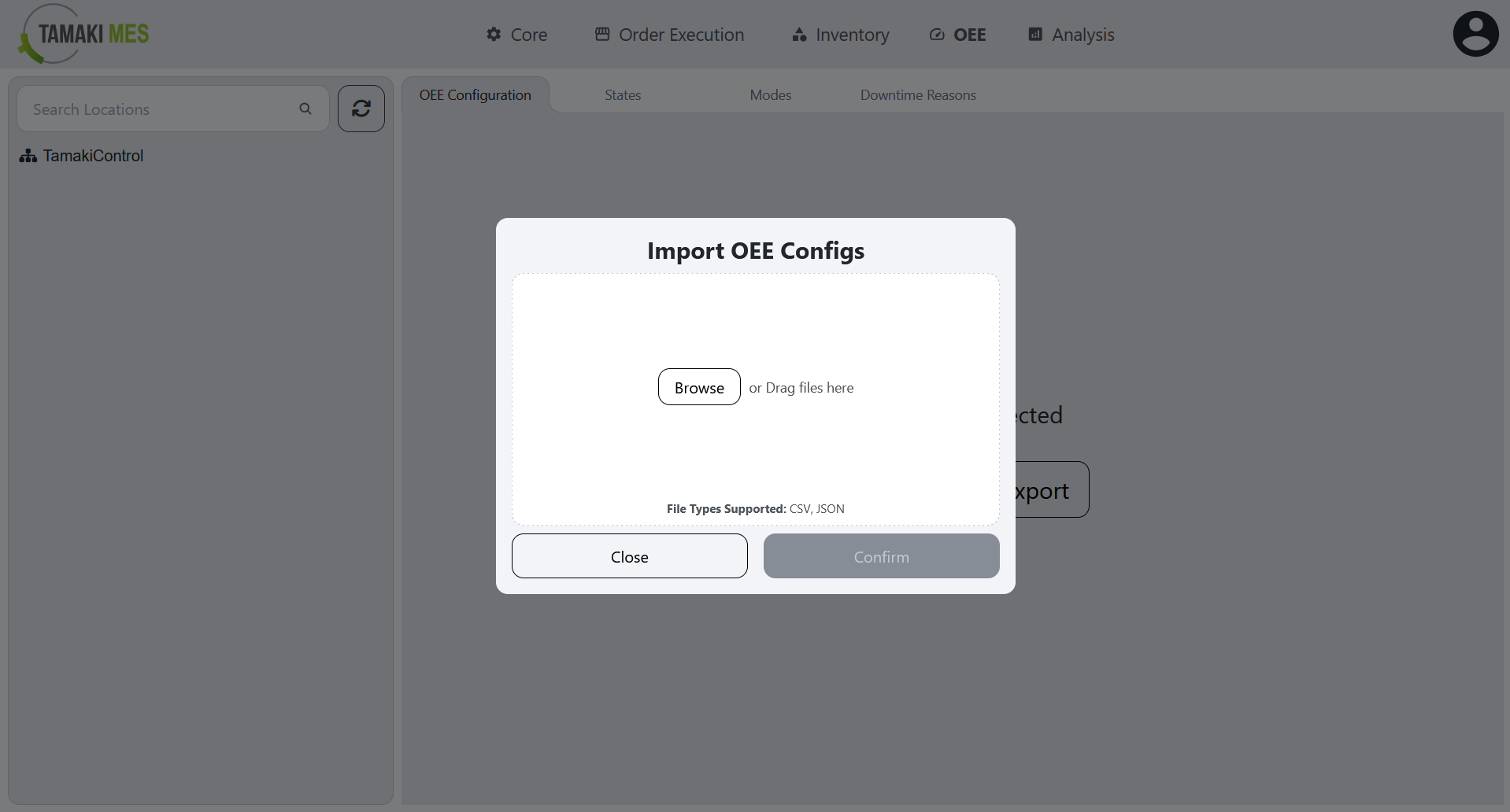
How to use:
-
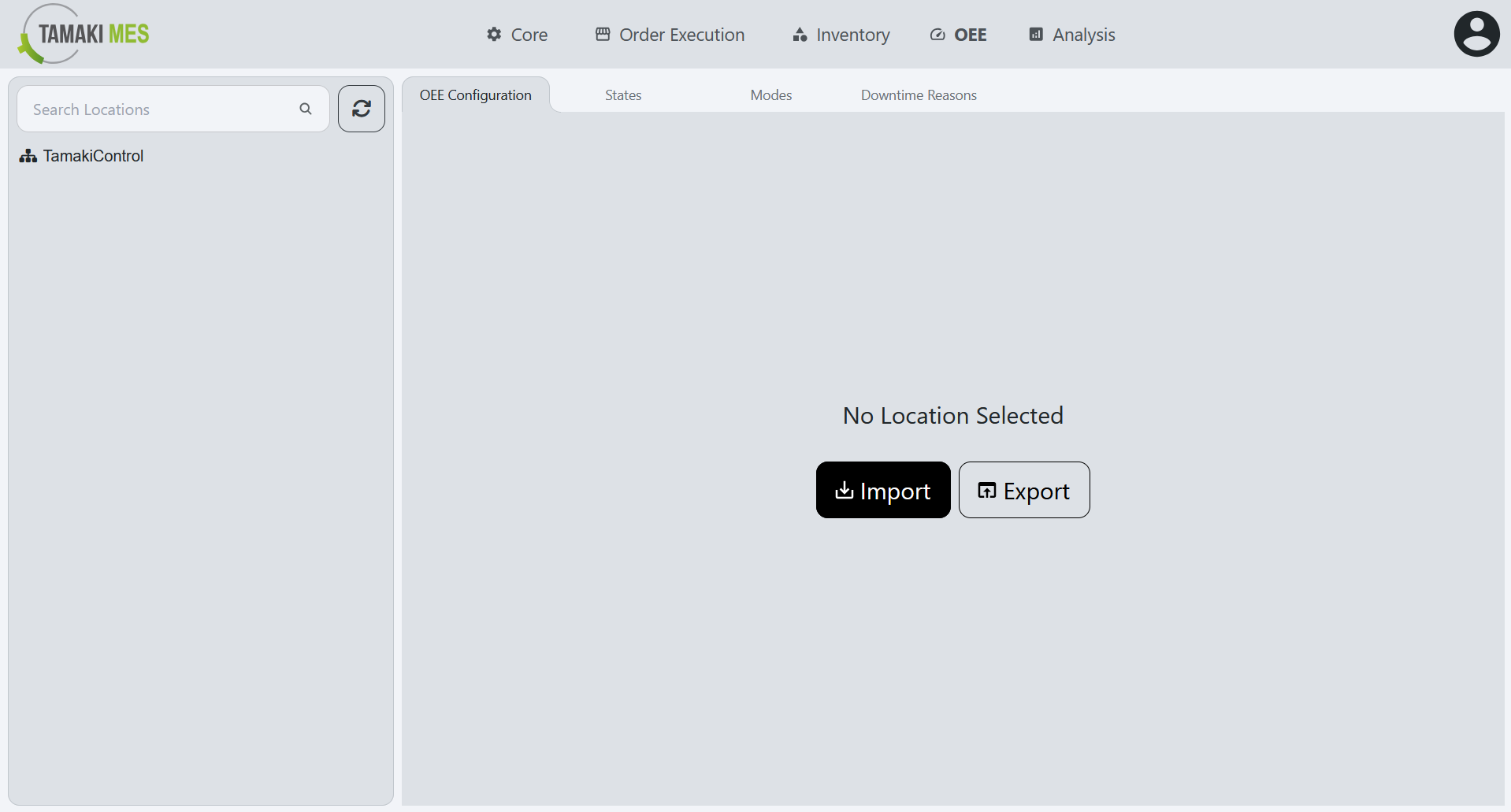
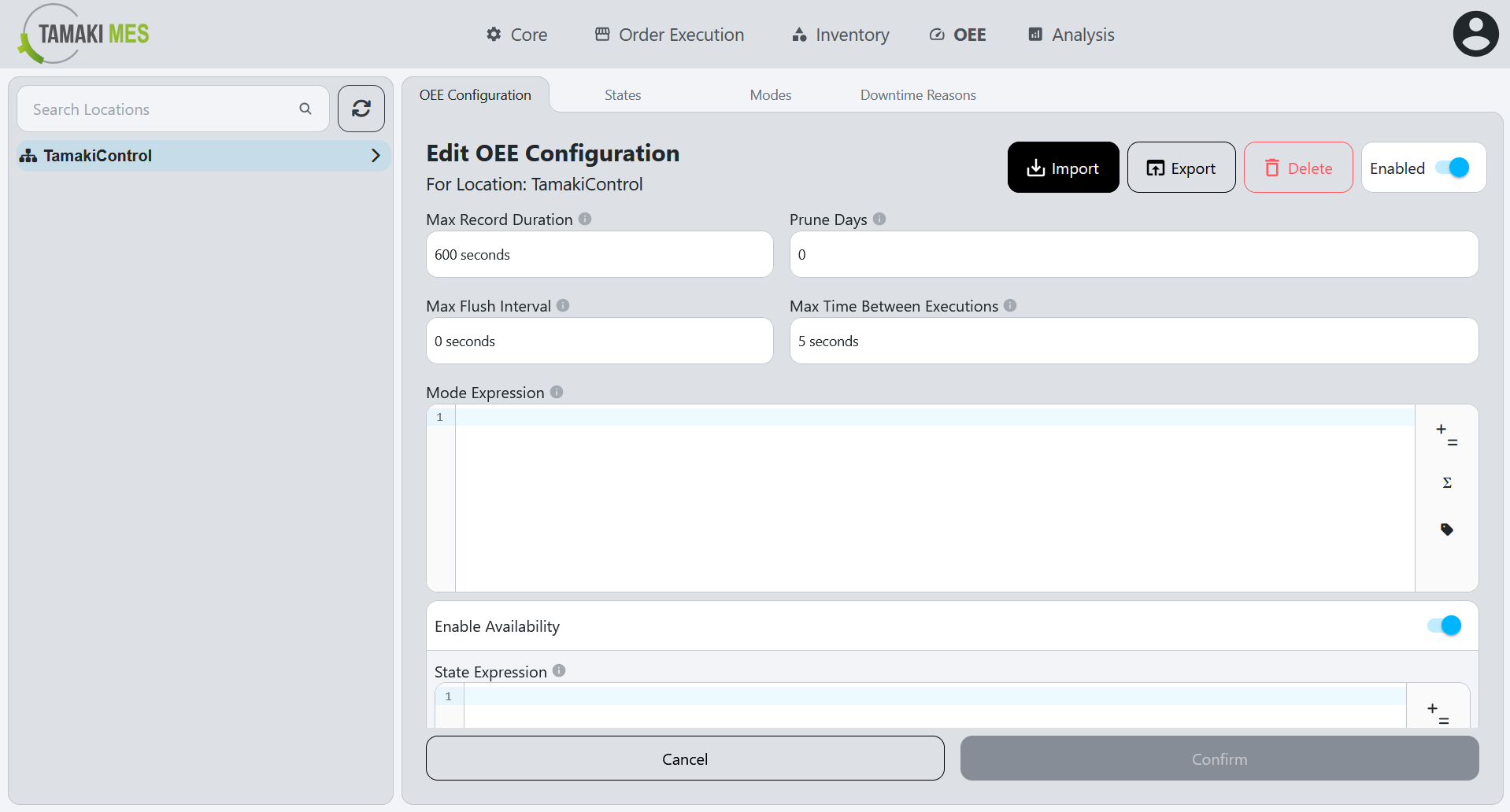
To import OEE configurations, press the import button and add a CSV or JSON file to the file upload field. Then press the confirm button.
-
It is recommended to export at least one pre-existing OEE configuration to CSV to ensure the correct format of the CSV file.
Import Behavior:
- When importing, the system checks whether an OEE configuration already exists by location. If a match is found, the existing OEE configuration is modified, otherwise a new OEE configuration is created.
Exporting OEE Configuration
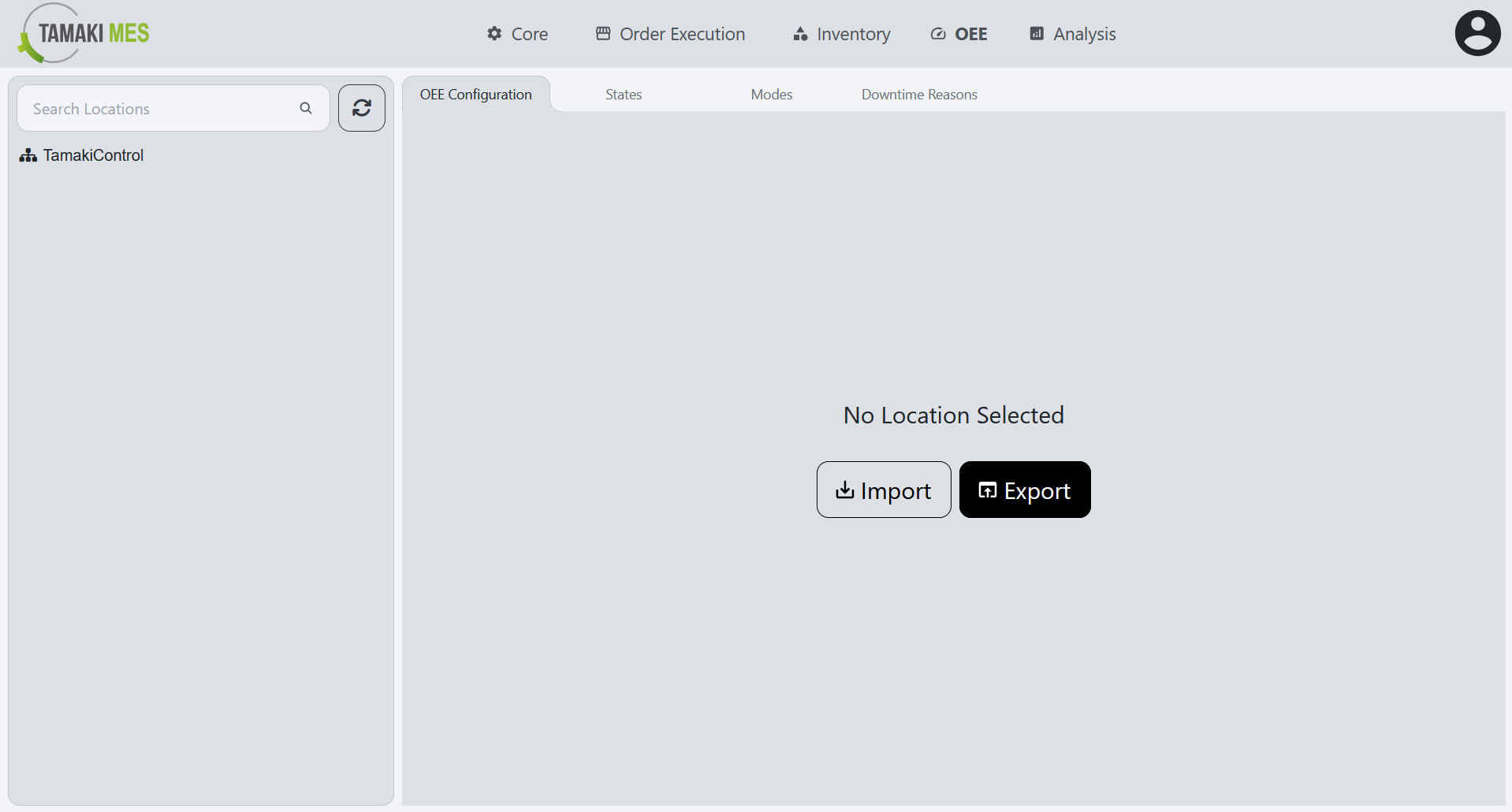
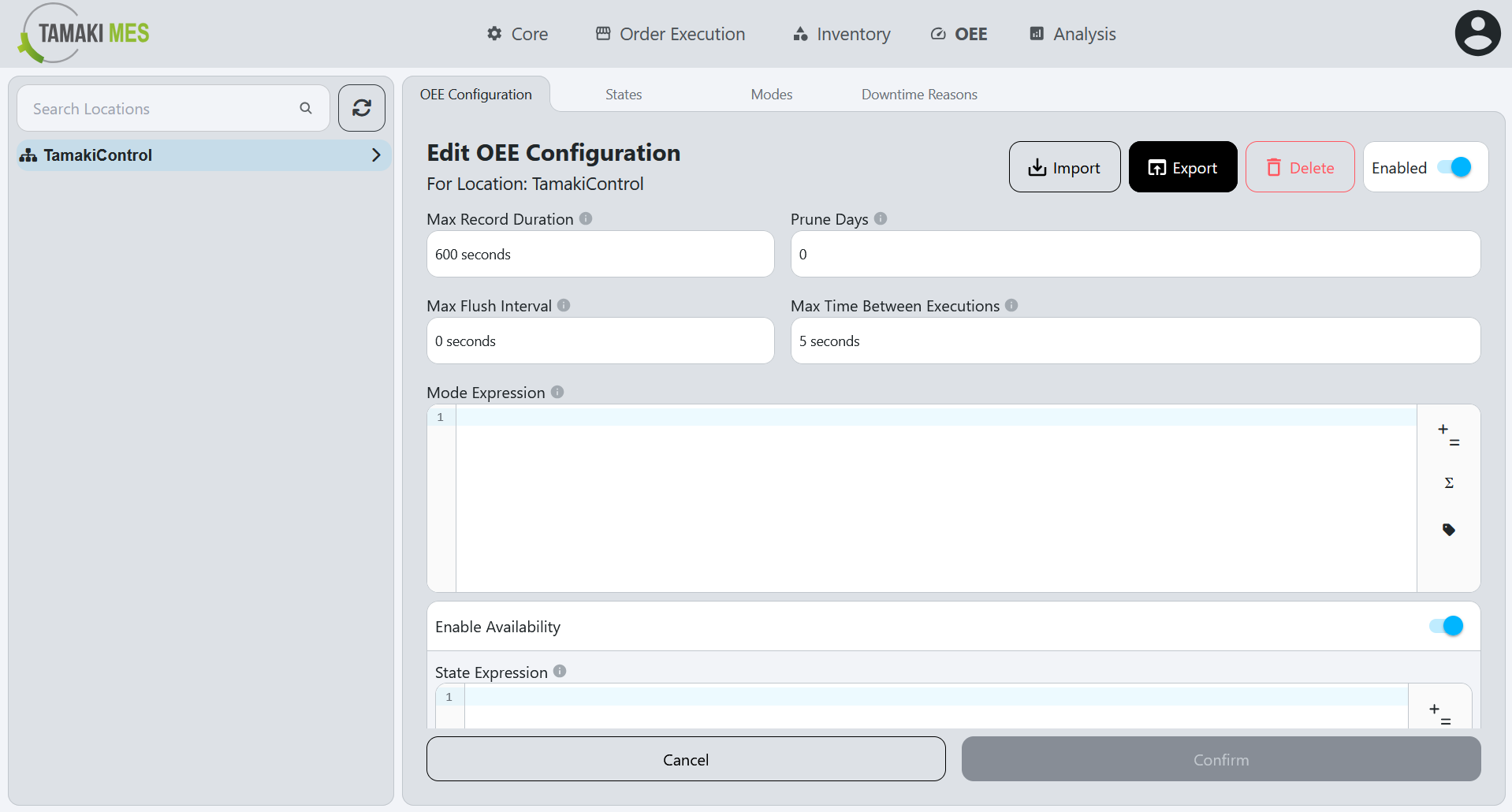
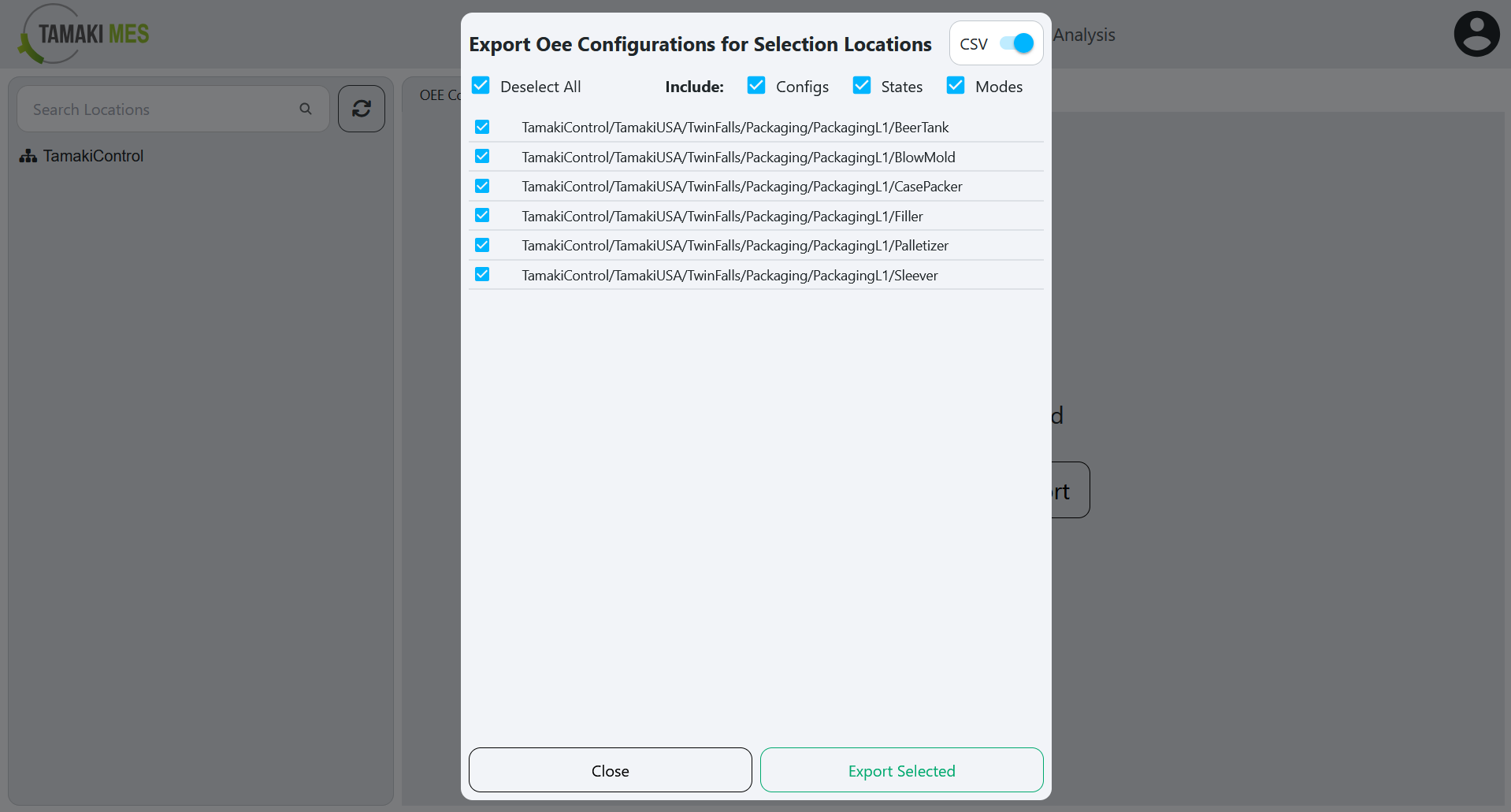
How to use:
- To export OEE configurations, press the export button and select if you'd like to include the configuration, modes and states. Select the locations associated with the OEE configuration you'd wish to export. Then press the export selected button.
OEE Availability Reasons
Navigation:
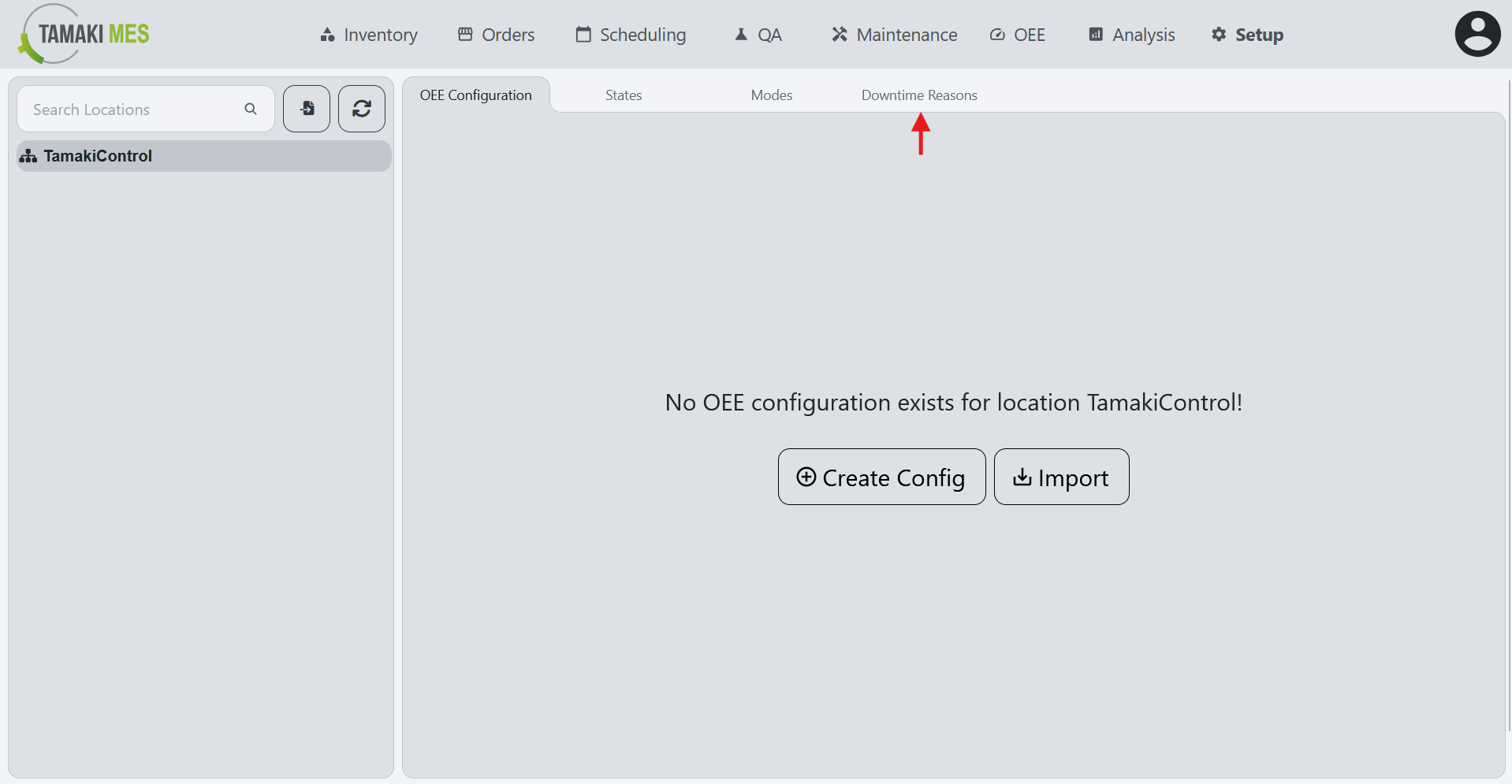
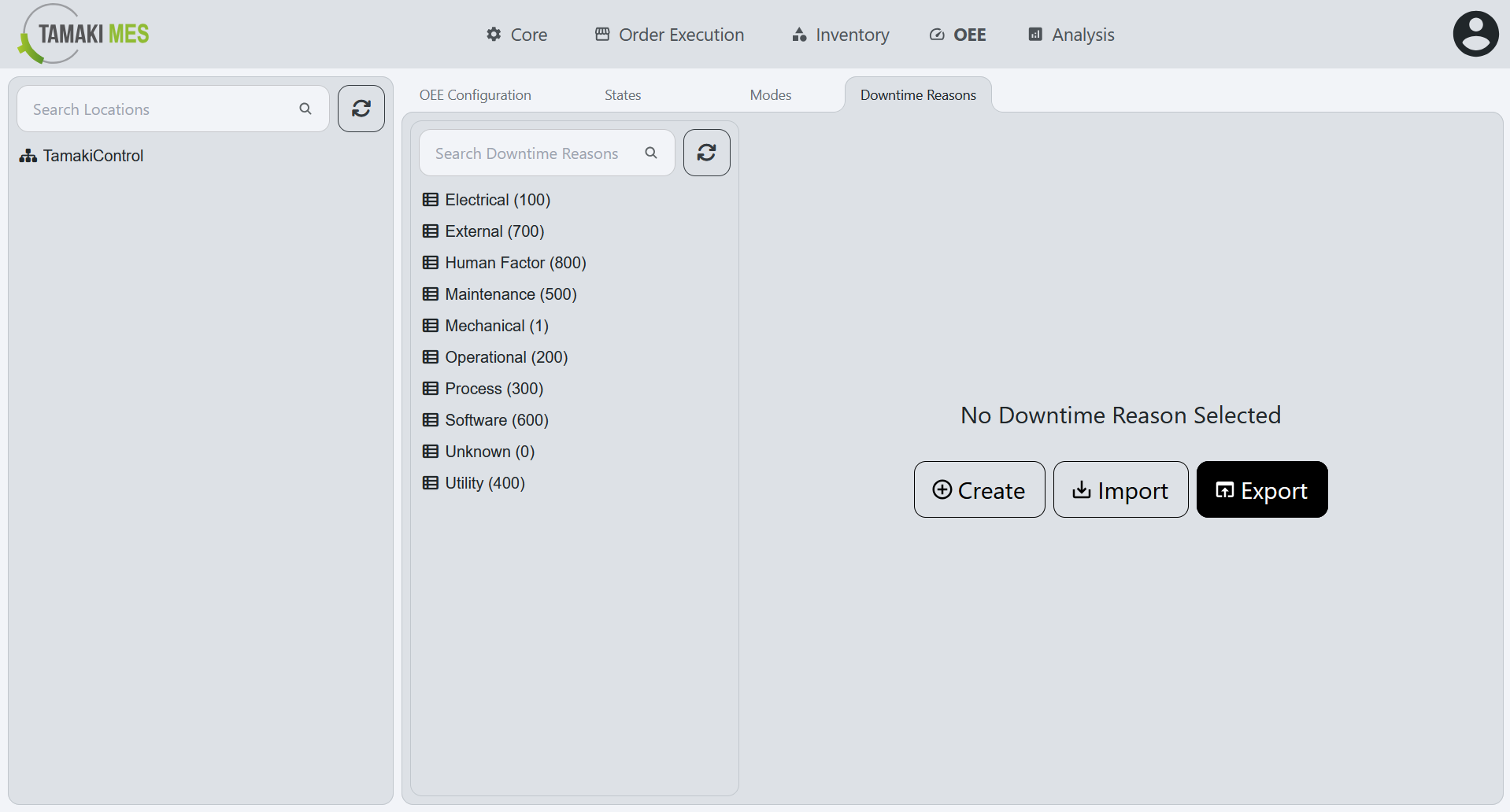
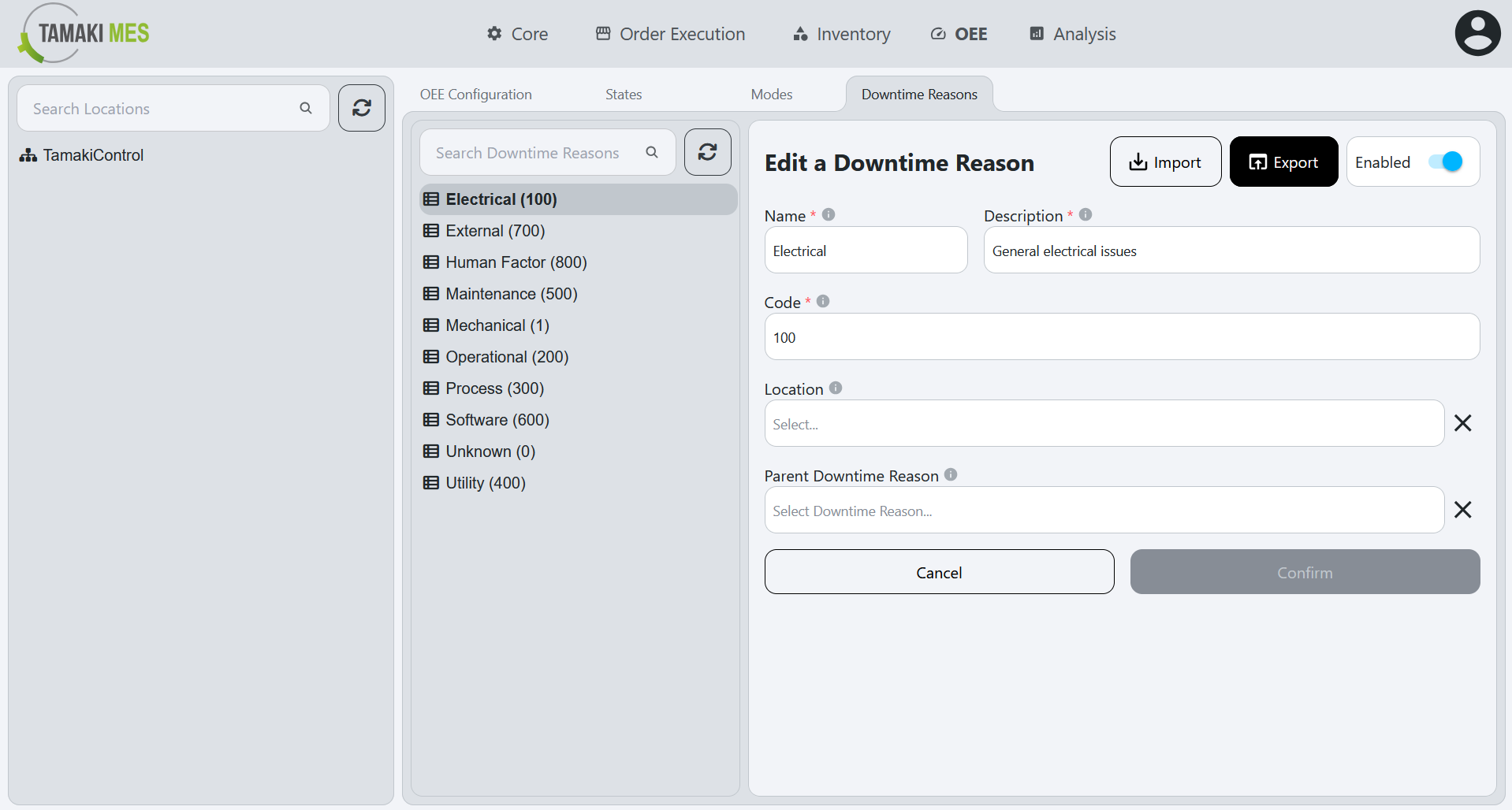
Importing OEE Availability Reasons
How to use:
-
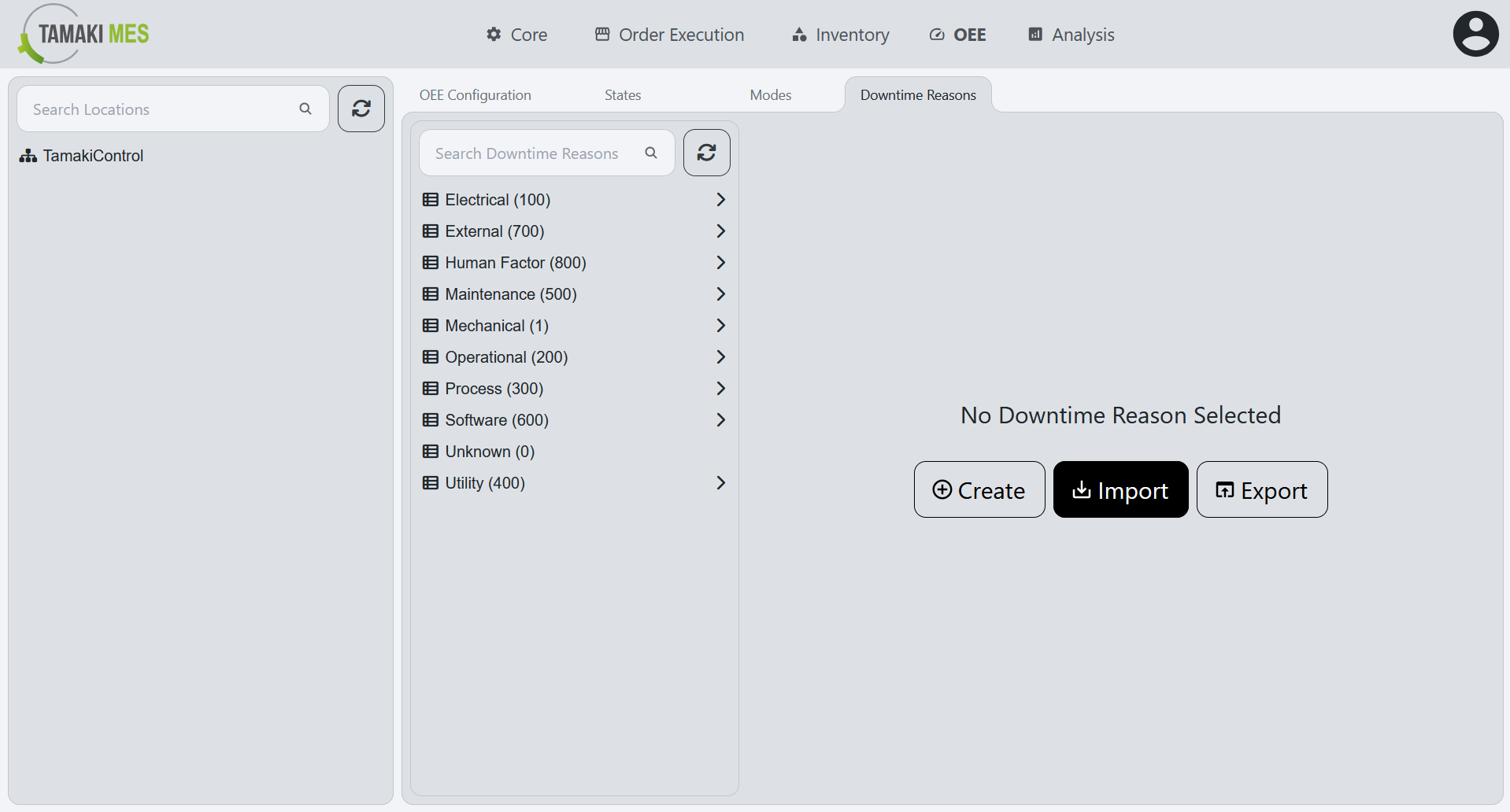
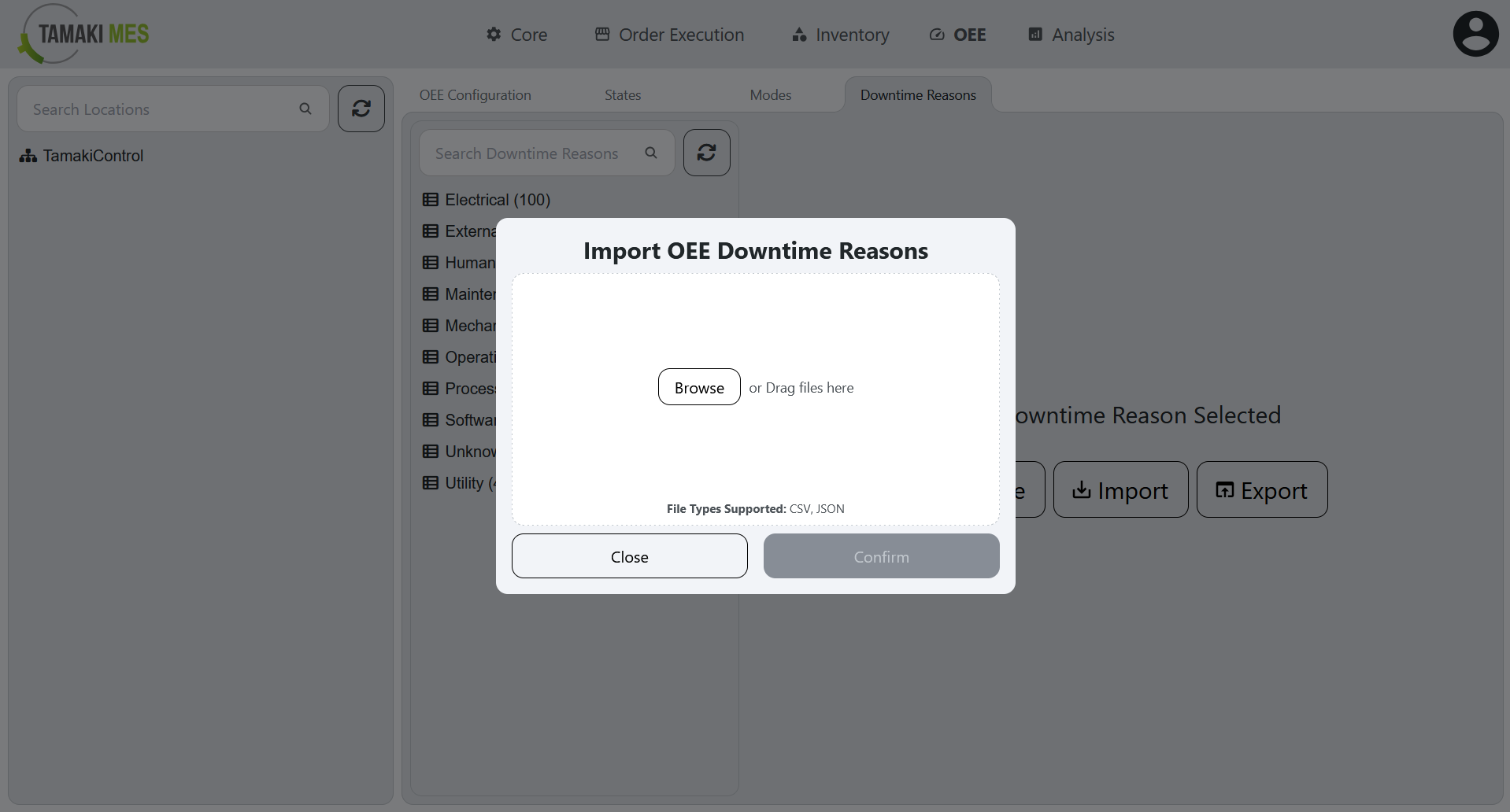
To import OEE availability reasons, press the import button and add a CSV or JSON file to the file upload field. Then press the confirm button.
-
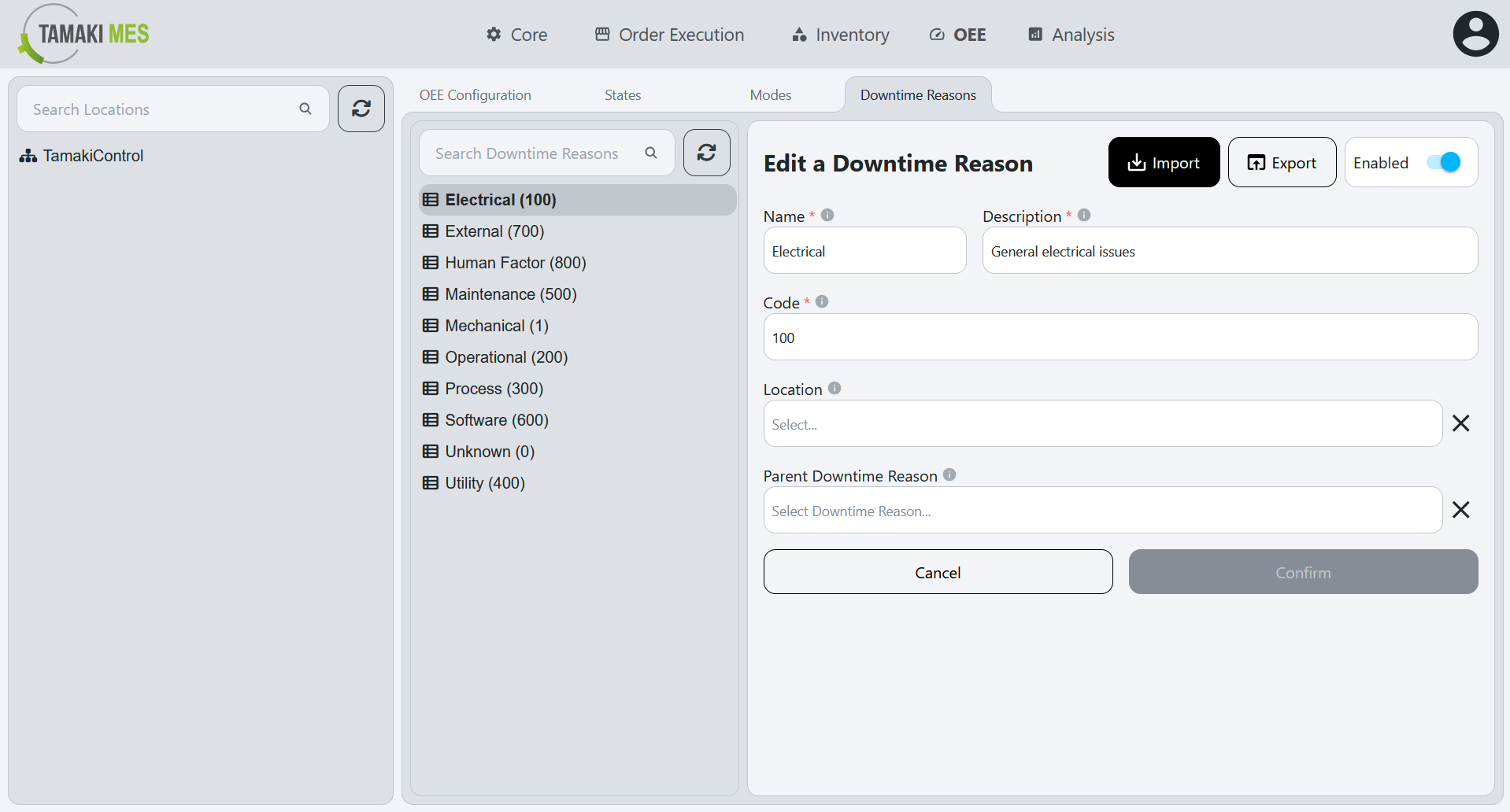
It is recommended to export at least one pre-existing OEE availability reason to CSV to ensure the correct format of the CSV file.
Import Behavior:
- When importing, the system checks whether an OEE availability reason already exists by availability reason path. If a match is found, the existing OEE availability reason is modified, otherwise a new OEE availability reason is created.
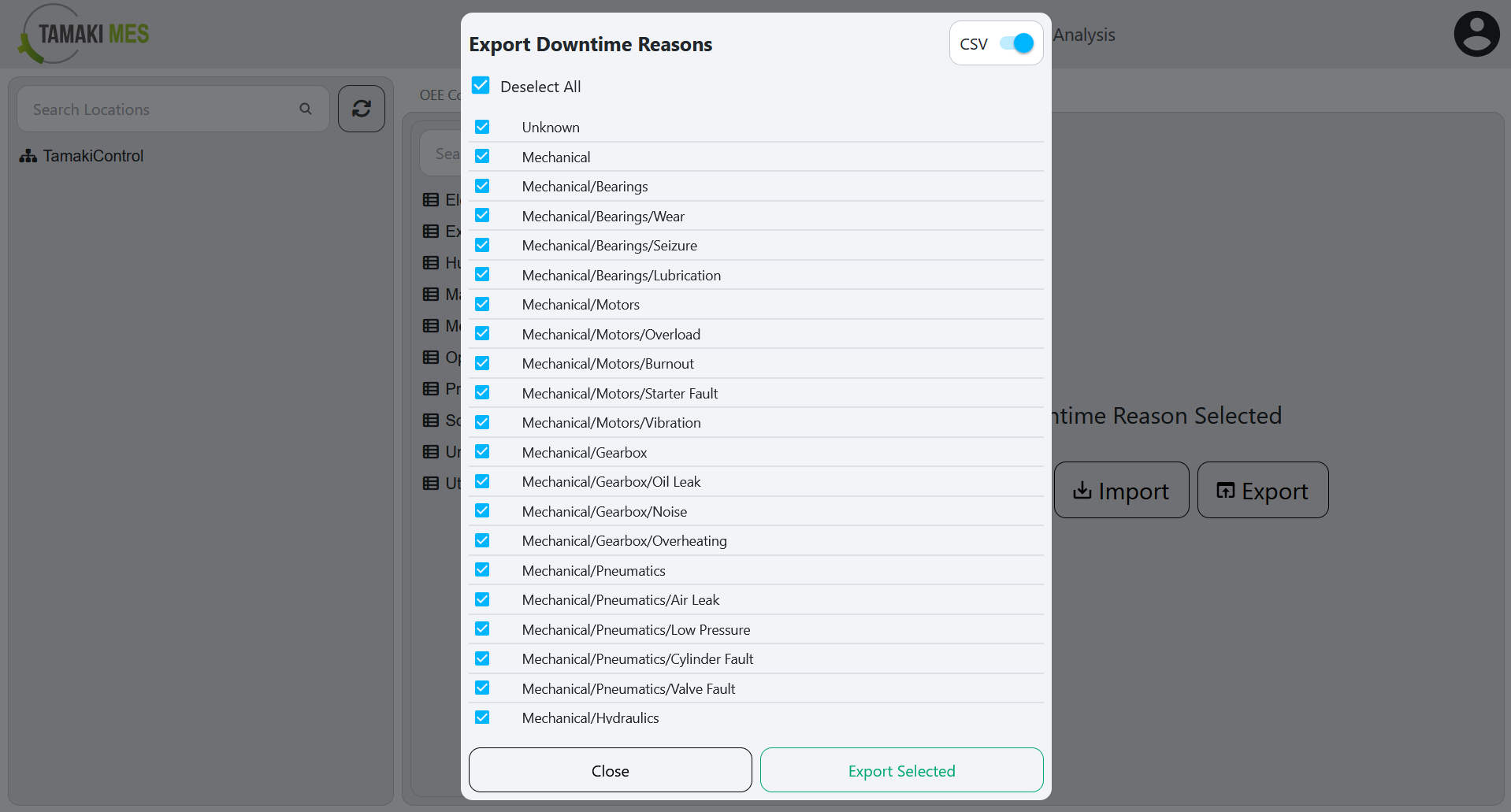
Exporting OEE Availability Reasons
How to use:
- To export OEE availability reasons, press the export button and select the OEE availability reasons you'd wish to export. Then press the export selected button.