OEE Mode Records
Navigation: OEE → OEE Mode Records
Description:
- The OEE Mode Records screen lists a location's Mode Records - the history of which Mode the location was in over time - and lets you correct that history by reassigning or splitting records.
Layout
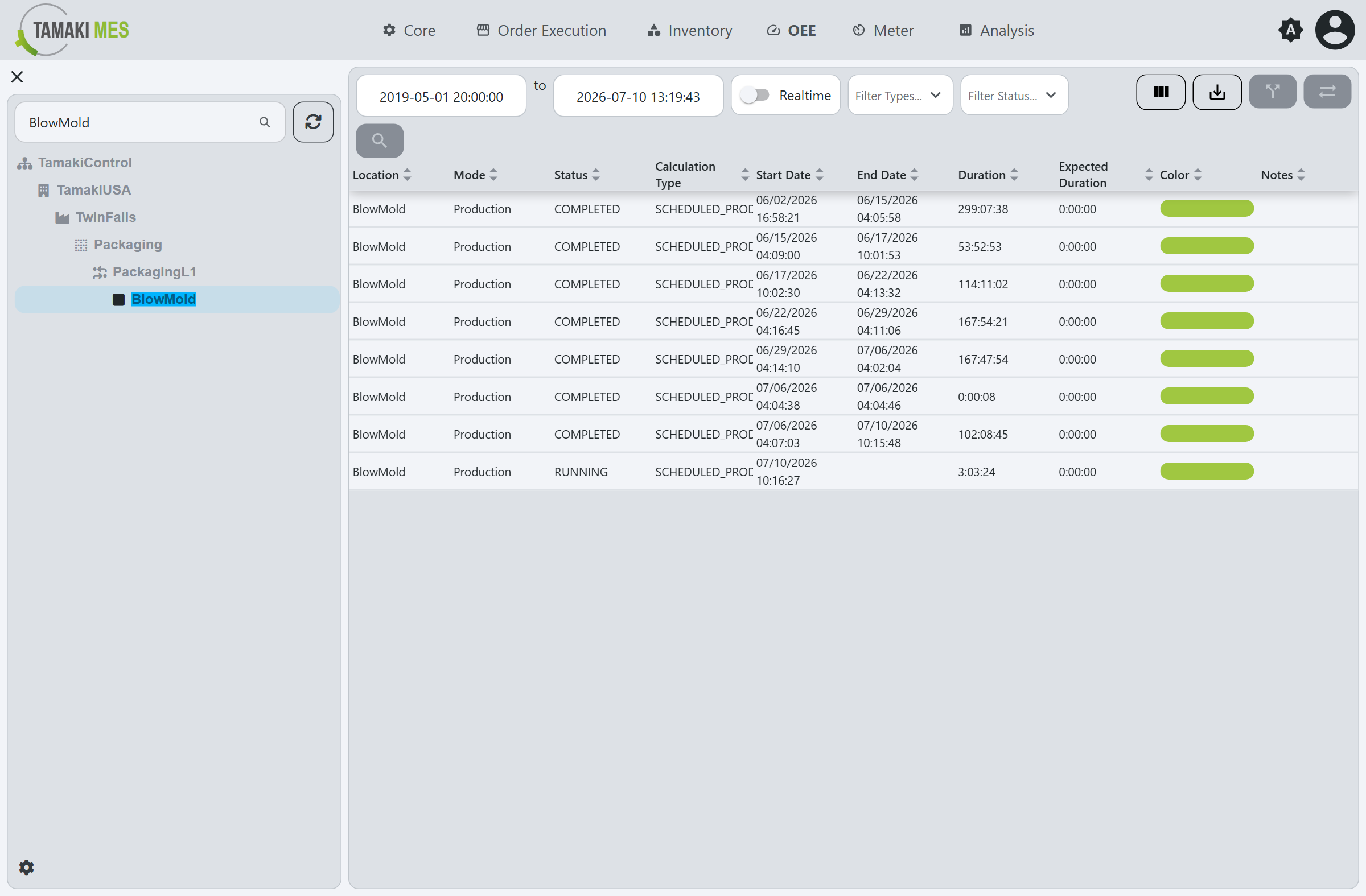
- Location Tree (left): select a location to load its mode records. Use the
Search Locationsbox to jump to one. - Filter Bar (top): a start and end date, a Realtime toggle (a rolling window that refreshes
automatically), and Filter Types and Filter Status dropdowns to limit the table by mode
calculation type or record status. In Realtime mode a narrow window may show
No Events; turn Realtime off and widen the range to load history.
Table Columns
| Column | Description |
|---|---|
| Location | The location the record belongs to. |
| Mode | The Mode the location was in. |
| Status | The record's lifecycle status (for example RUNNING for the current record or COMPLETED). |
| Calculation Type | The mode's calculation type (Scheduled Production / Scheduled Downtime / Unscheduled Downtime). |
| Start Date | When the record started. |
| End Date | When the record ended (blank while running). |
| Duration | How long the record lasted. |
| Expected Duration | The mode's expected duration, if configured. |
| Color | The mode's color. |
| Notes | Notes recorded against the record. |
Actions
Select a record, then use the toolbar. The column-config and export icons manage the table; the row-action icons operate on the selected record.
View Record Details
Opens a popup with the record's timing, its Duration and Overrun (time beyond the mode's expected duration), notes, and mini OEE gauges for the record.
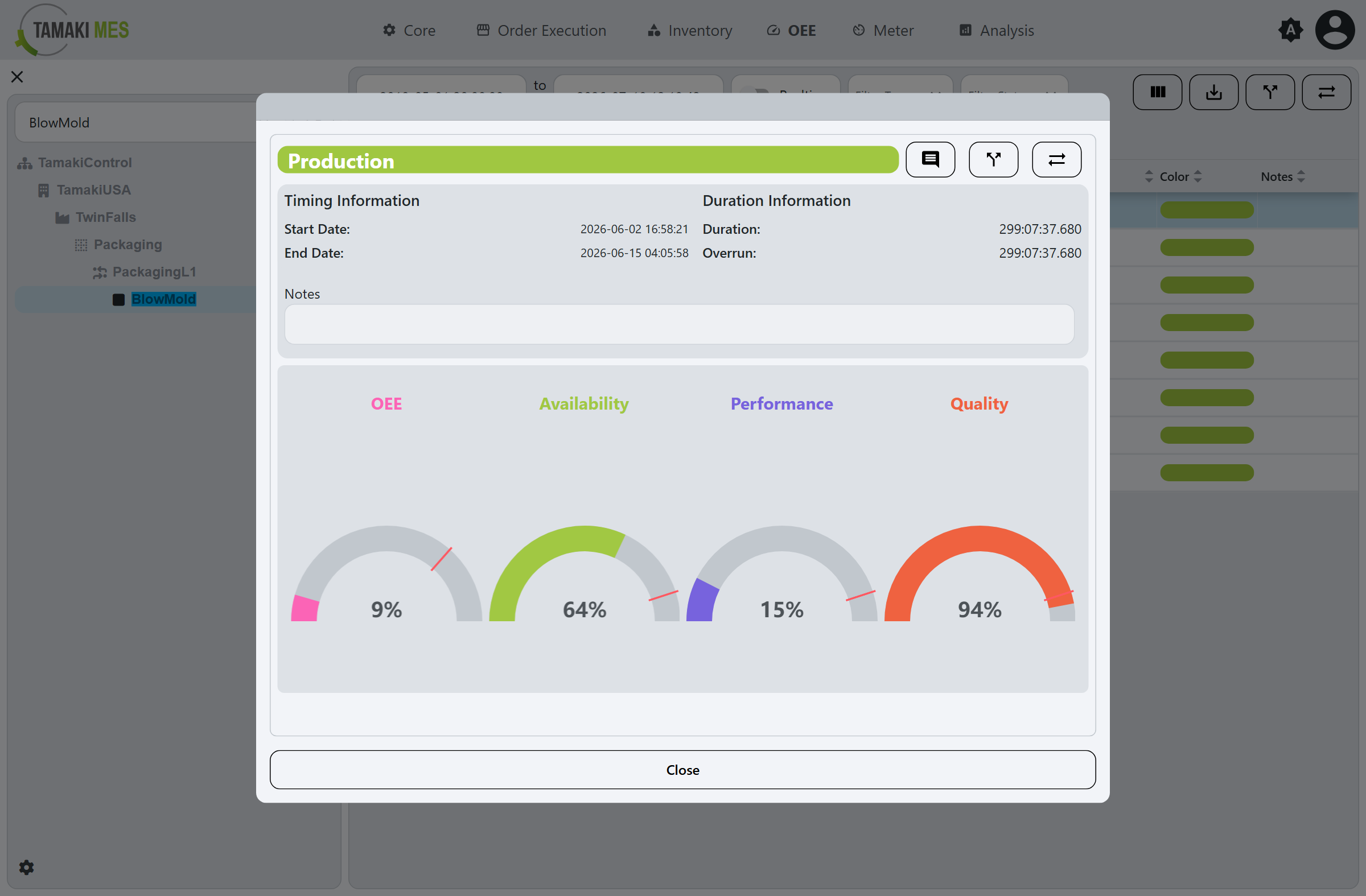
The header icons in this popup also expose Set Notes, Reassign, and Split.
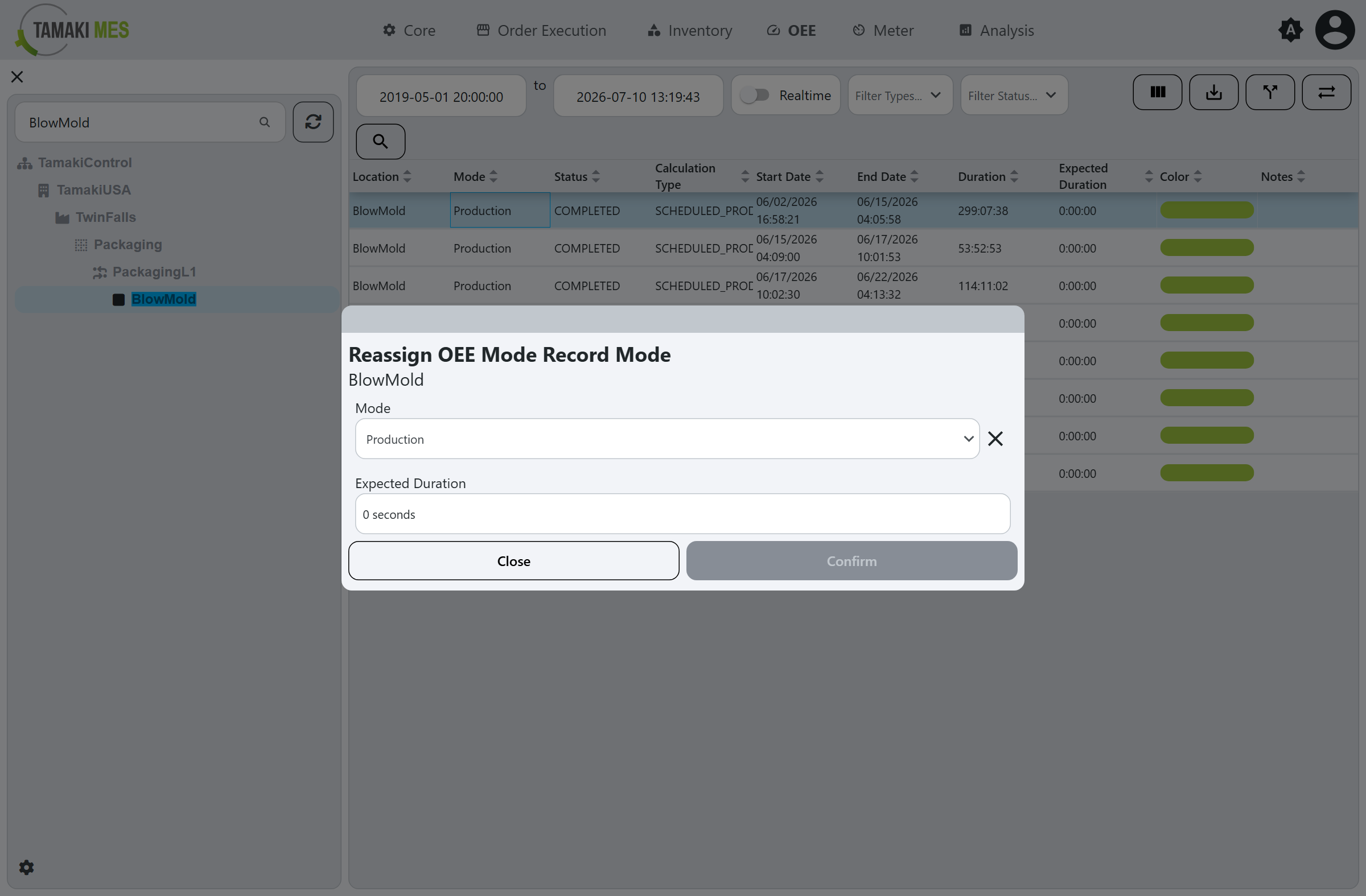
Reassign
Changes the Mode recorded for the selected record.
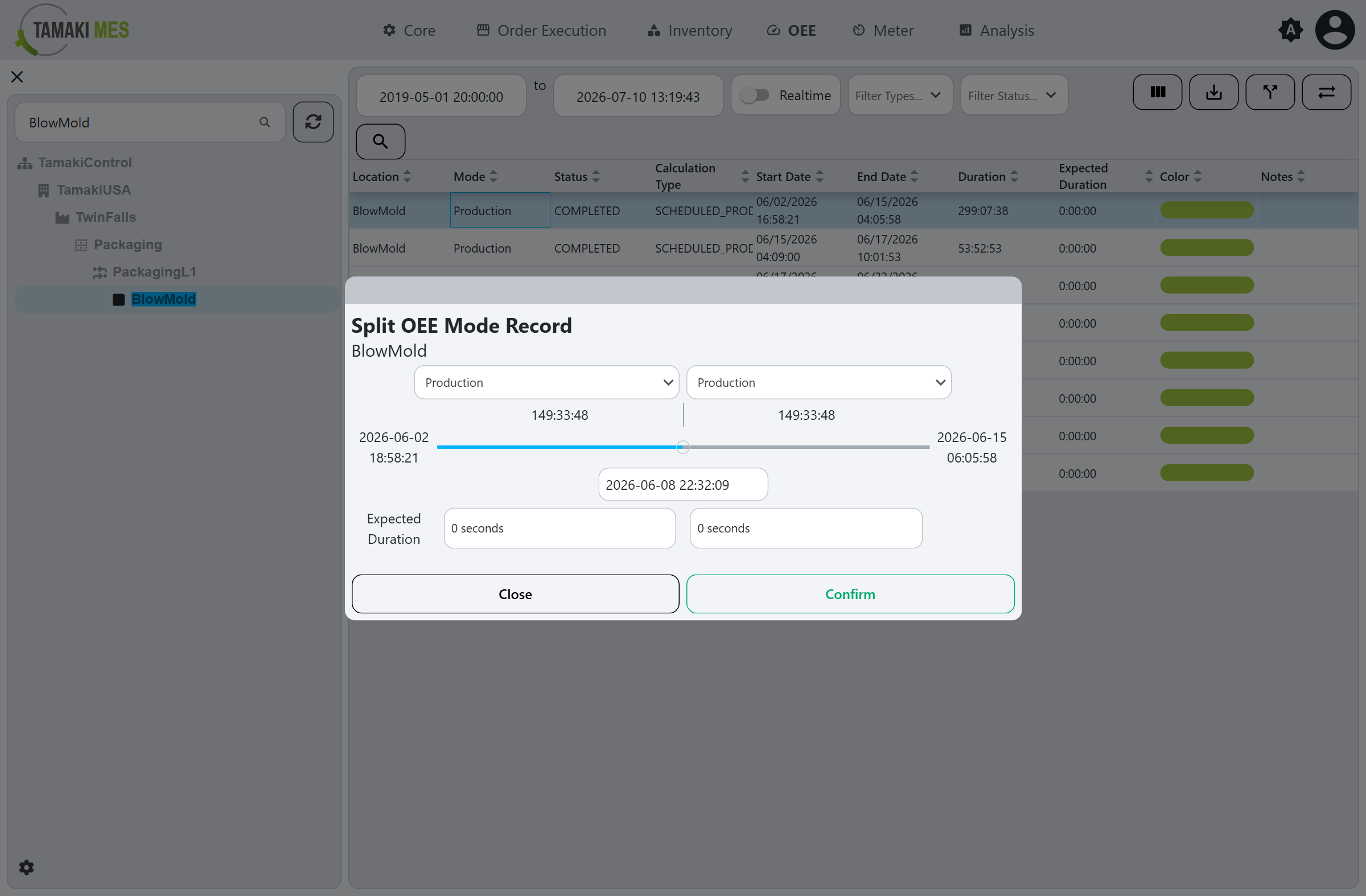
Split
Divides the selected record into two at a chosen point, assigning a mode and expected duration to each part.