Downtime Reasons
Navigation: OEE → OEE Configuration → Downtime Reasons
Description:
- The Downtime Reasons tab defines a hierarchical tree of Downtime Reasons for a location. Reasons categorize why a location was down, and are assigned to downtime events either automatically (via the Downtime Reason Expression) or manually on the Downtime Entry page. The hierarchy lets you roll up and drill down on downtime causes in analysis (see the Downtime Pareto).
- See the OEE Downtime Reason data model for the underlying structure.
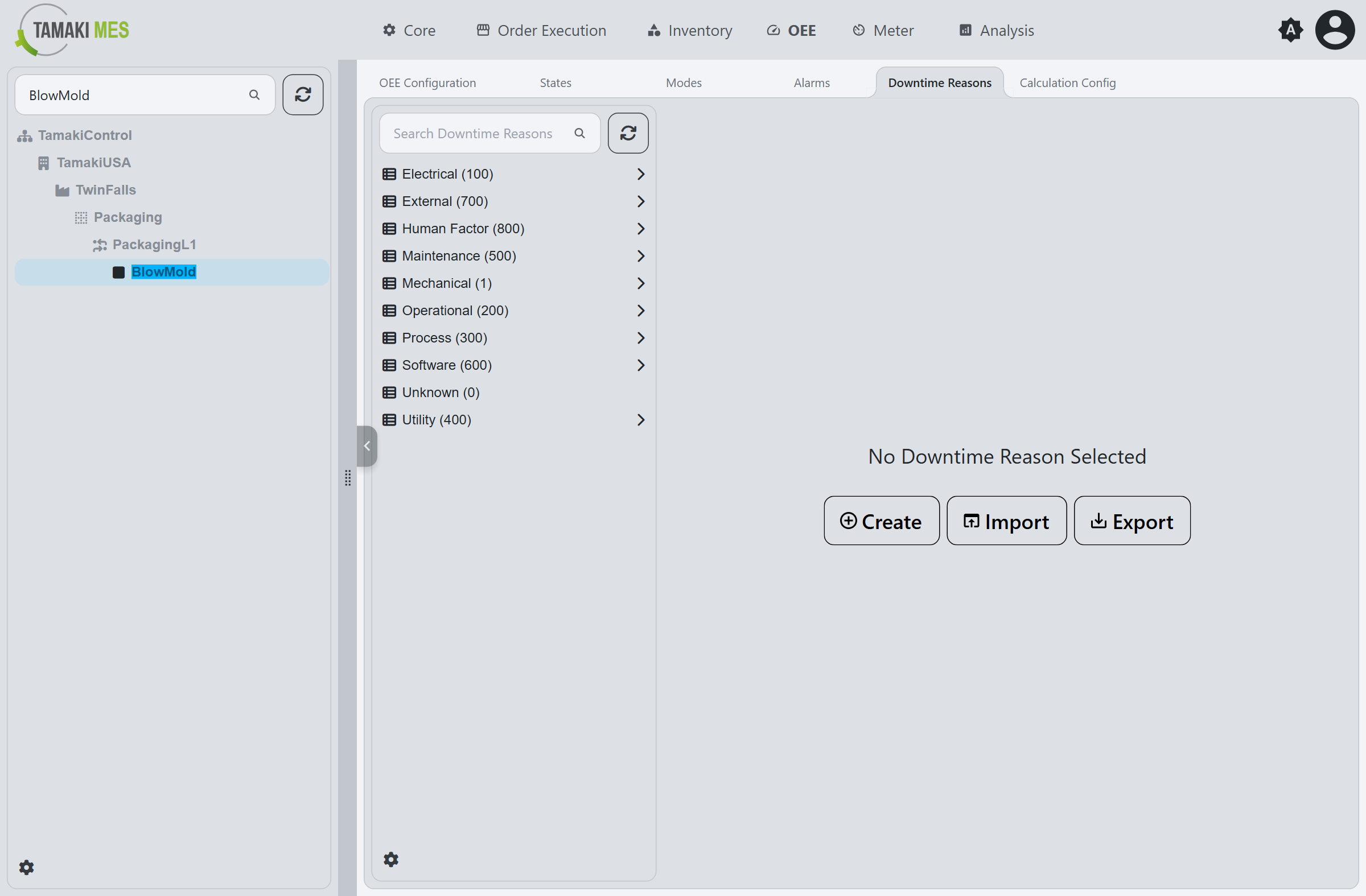
The reason tree is shown on the left; selecting a reason loads its details in the editor on the right.
Workflow
Create a Downtime Reason
- In the tree, select the reason you want to be the parent, or leave it unselected for a top-level reason.
- Click
Create. The editor populates with empty values and sets the Parent Downtime Reason to your selection. - Fill out the fields (see Downtime Reason Fields).
- Click
Confirm.
Edit a Downtime Reason
- Select a reason in the tree. The editor populates with its details.
- Modify the fields (see Downtime Reason Fields).
- Click
Confirm.
Import and Export move the reason tree to and from a CSV or JSON file.
Downtime Reason Fields
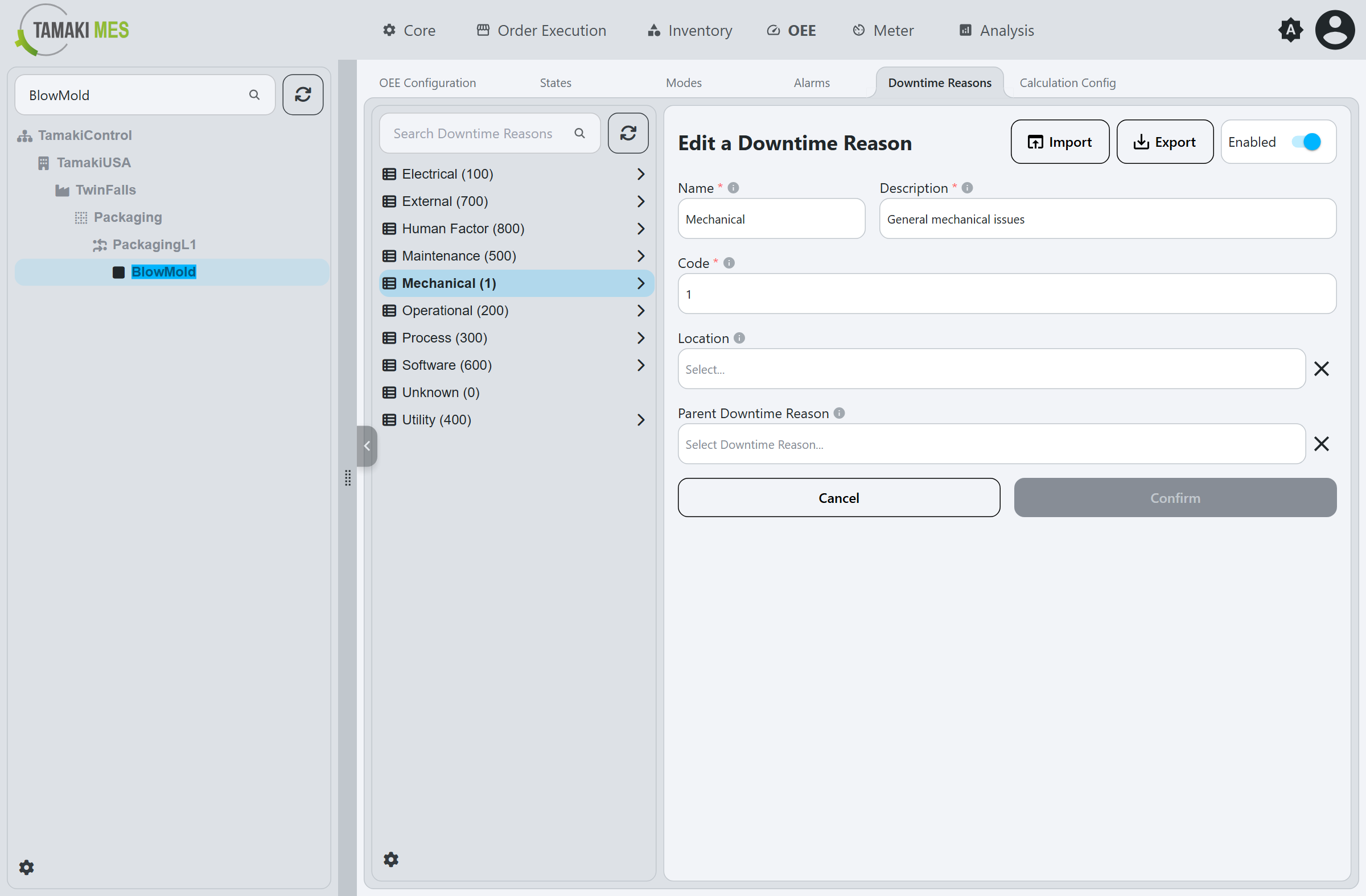
Enabled
Toggles the downtime reason on or off.
Name
The name of the downtime reason, shown on Downtime Entry and elsewhere in the MES. Should clearly describe the cause of the downtime.
Description
A detailed description of the downtime reason, giving operators and managers additional context.
Code
The integer fault code for the downtime reason, matching the value the PLC reports. Must be unique per location.
Location
The location this downtime reason applies to.
Parent Downtime Reason
The parent reason in the hierarchy. Setting a parent groups related reasons together, enabling roll-up and drill-down analysis of downtime causes.